New version highlights (4.2-4.5)
| Site: | Learn 2026 |
| Course: | Learn 2026 |
| Book: | New version highlights (4.2-4.5) |
| Printed by: | |
| Date: | Monday, 5 October 2026, 12:52 AM |
1. Course page improvements
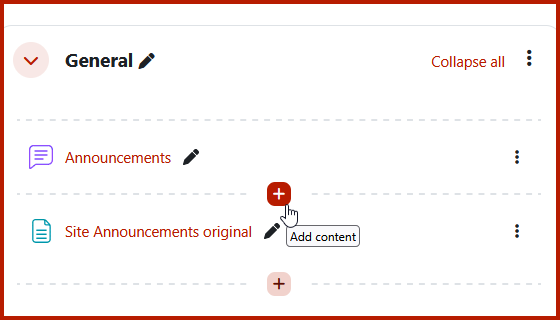
Quickly create content
Click to add an activity or resource anywhere on the course page.
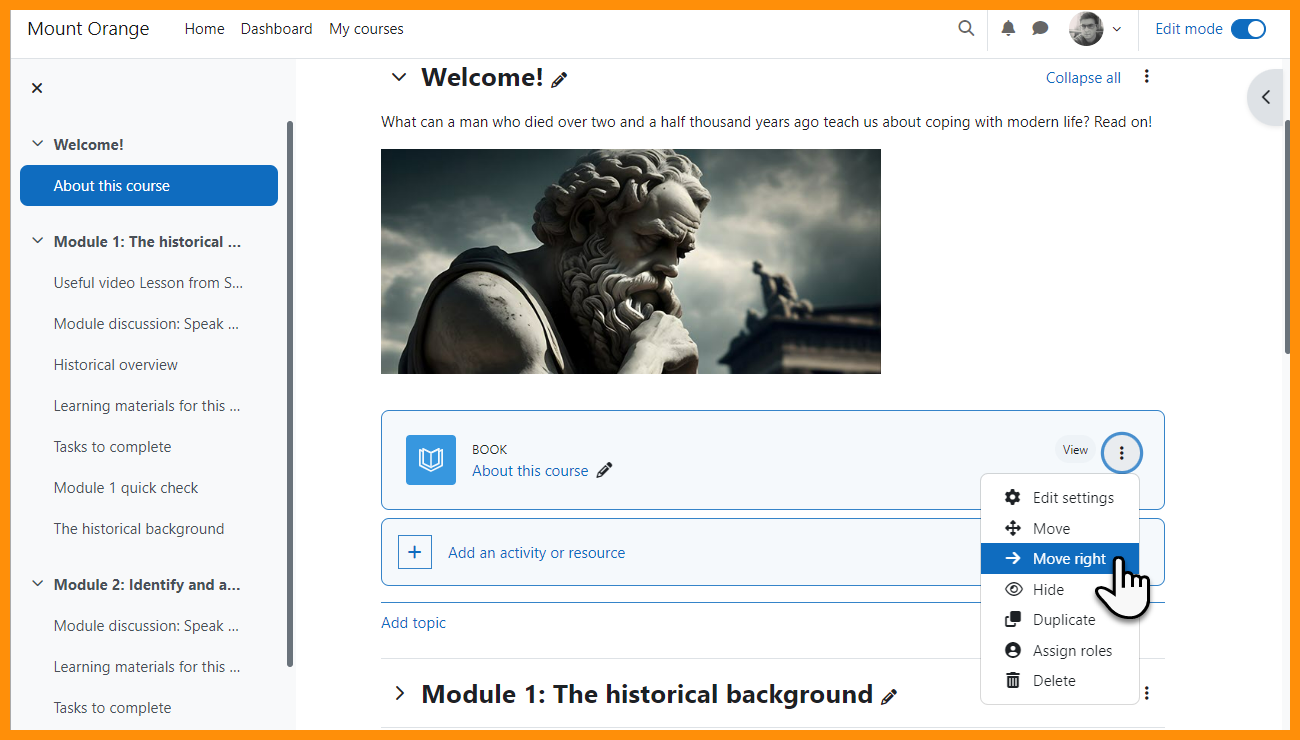
Easily indent items
move items once to the right, with this being reflected in the course index too.
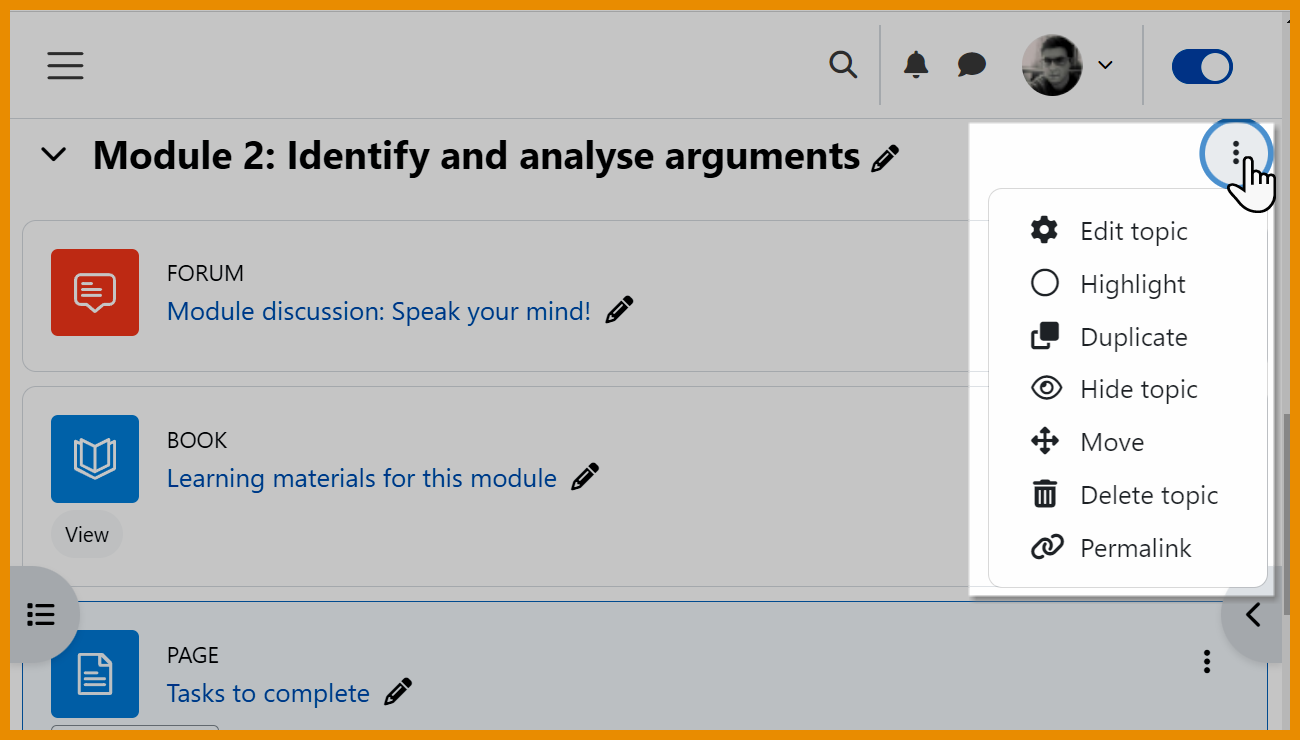
Better section options
Duplicate sections and benefit from useful permalinks.
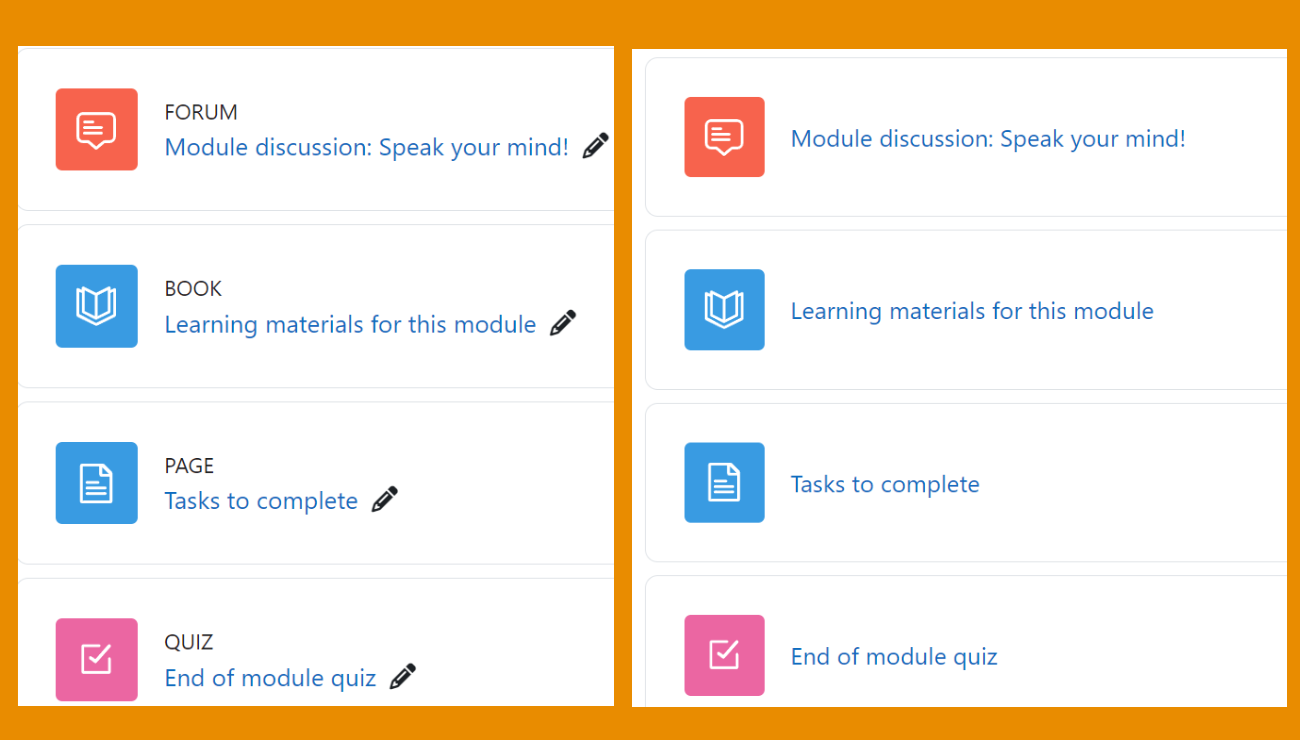
Activity names
Activity names now only display when edit mode is on.
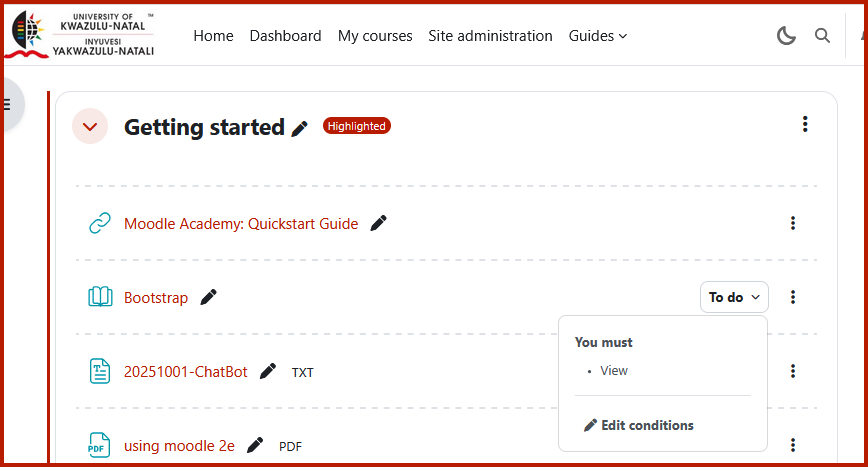
Smaller icons and dropdown menus
Smaller icons and access completion conditions from a dropdown menu and edit links to directly access settings.
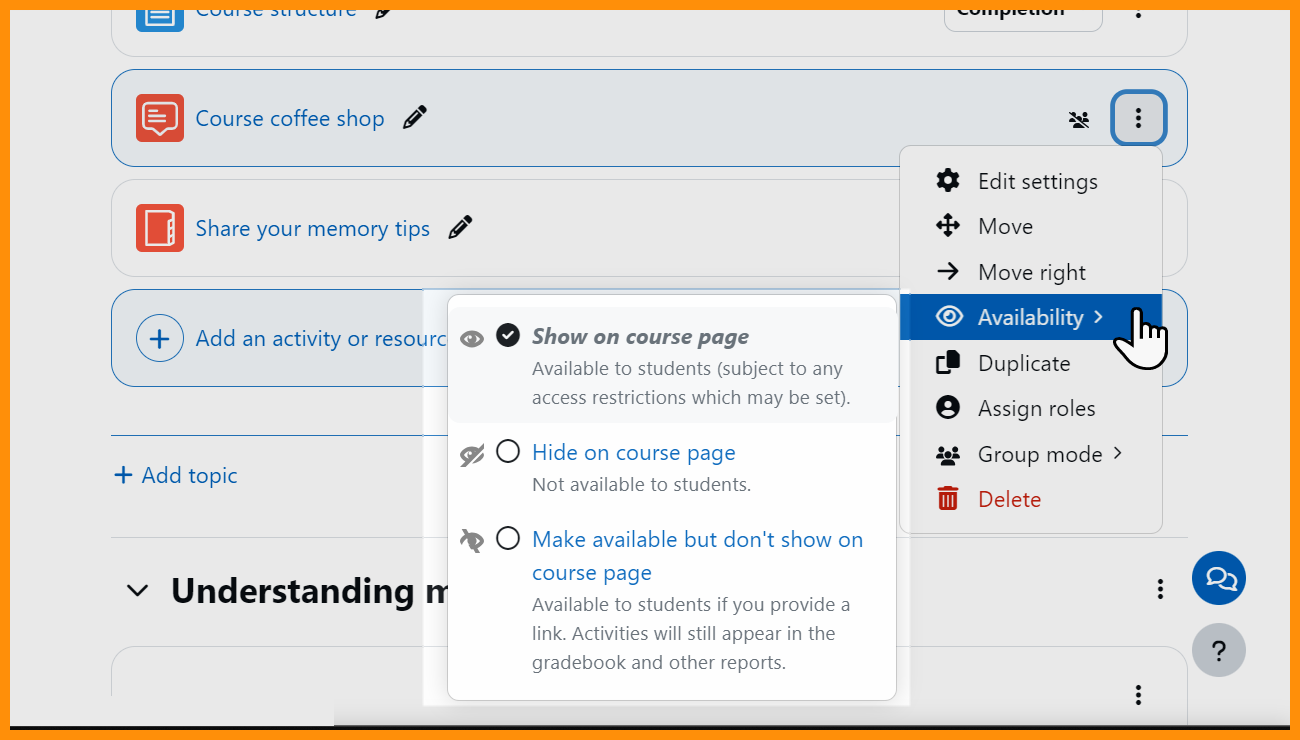
New Availability setting
From 'More' a new setting allows easy editing of availability options.
2. Bulk editing
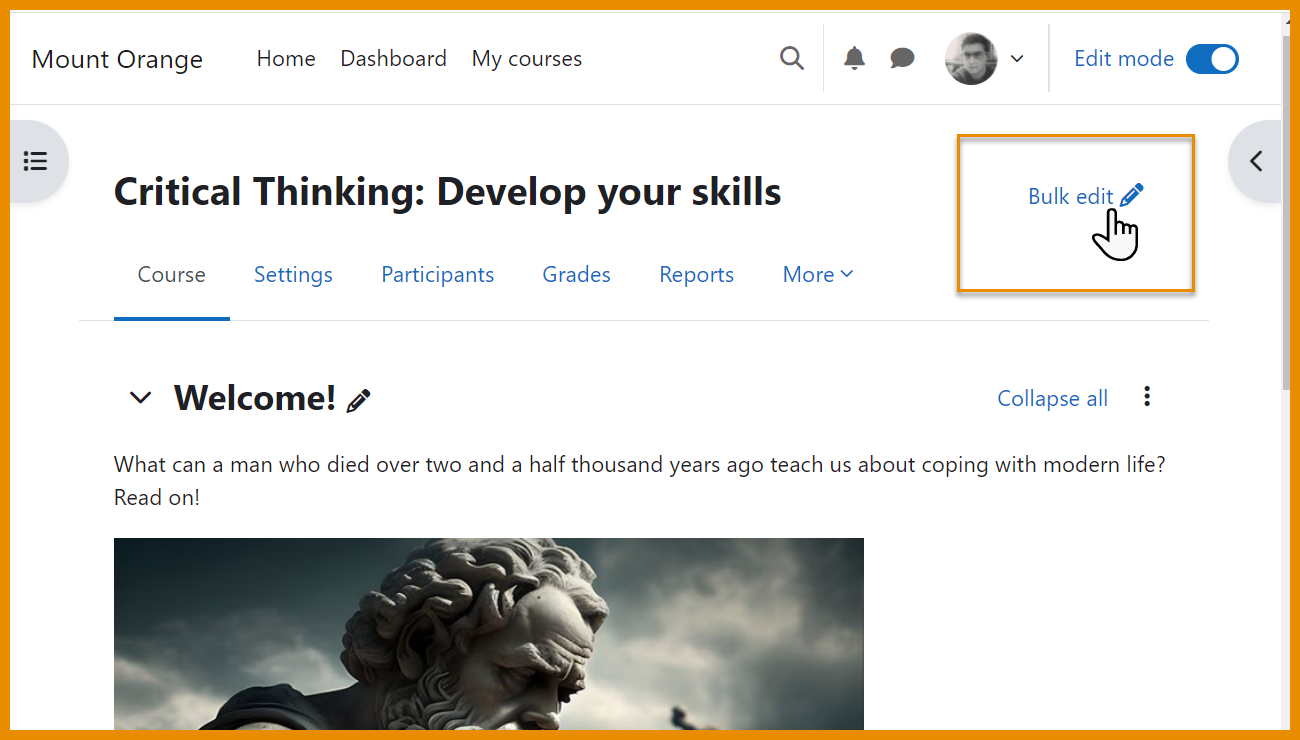
Bulk editing
Bulk editing option is available.
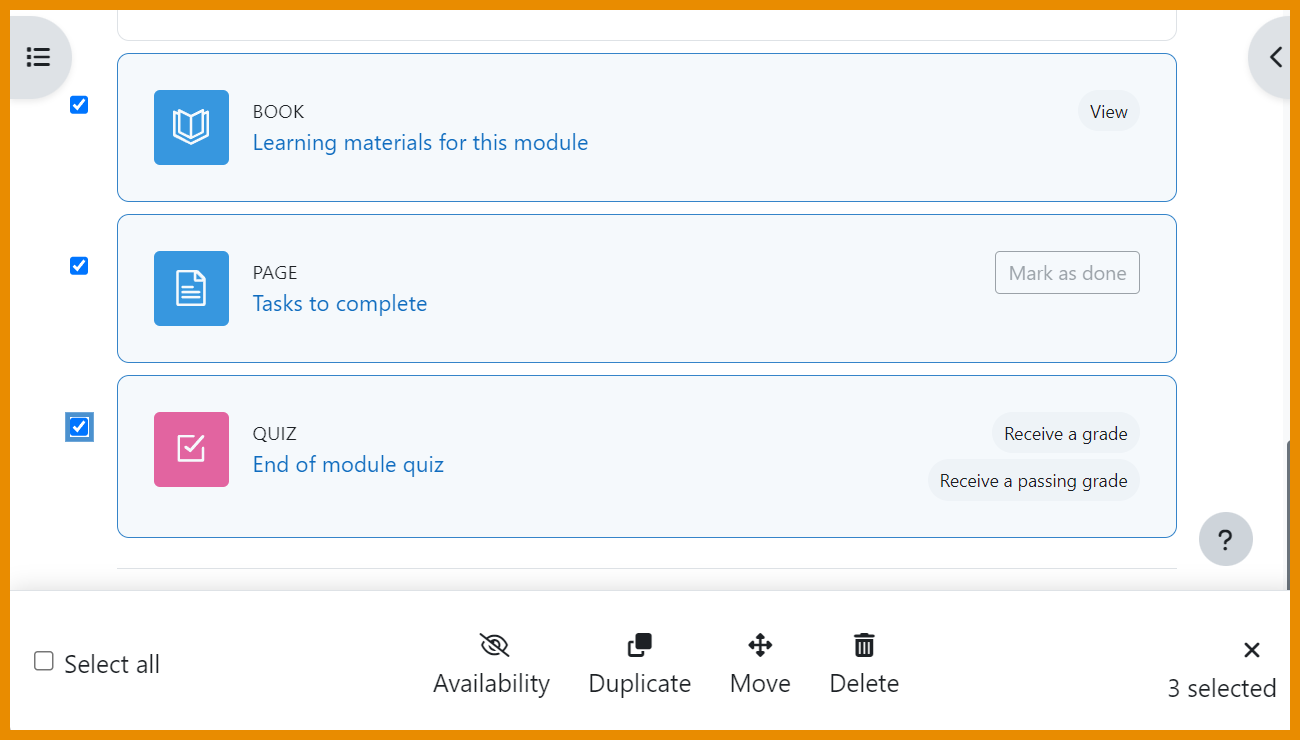
Bulk actions
Bulk delete, move, duplicate, hide or change visibility from the footer.
3. TinyMCE Text editor
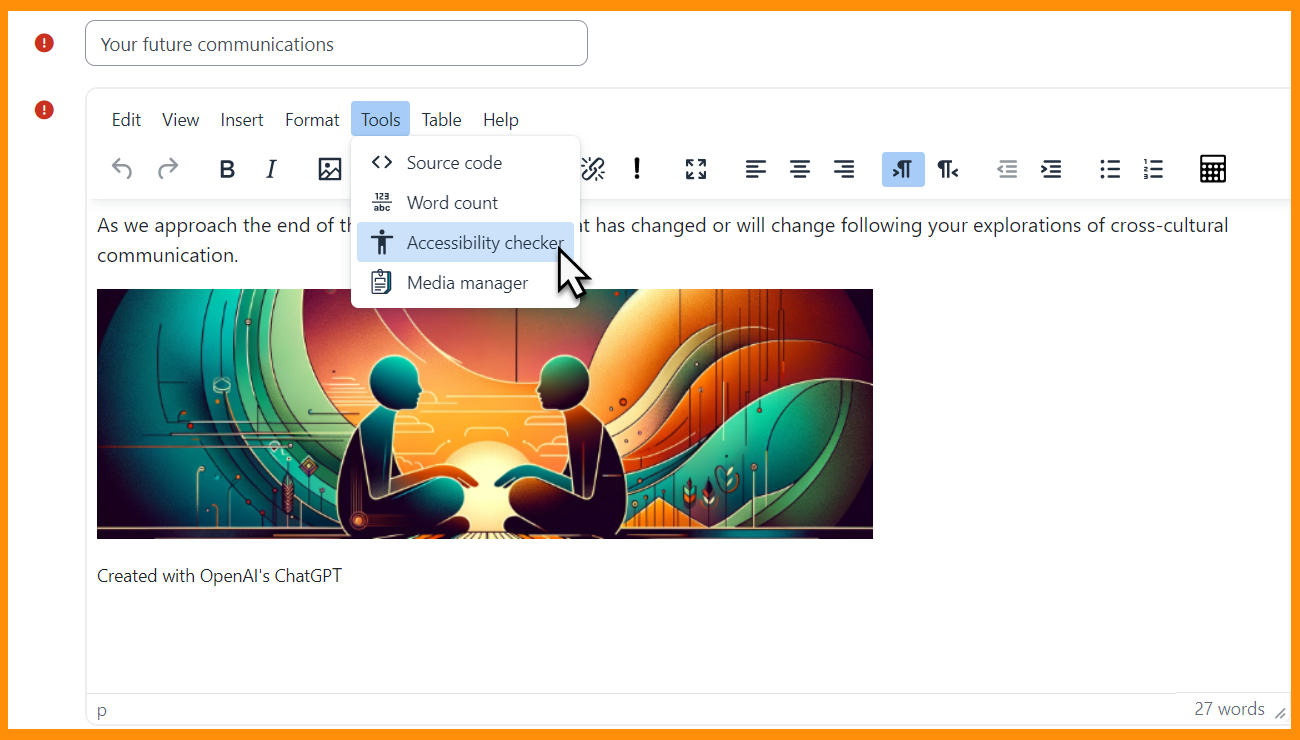
TinyMCE new default text editor
TinyMCE is now the default editor. You can change back to the previous default, Atto, in your User preferences.
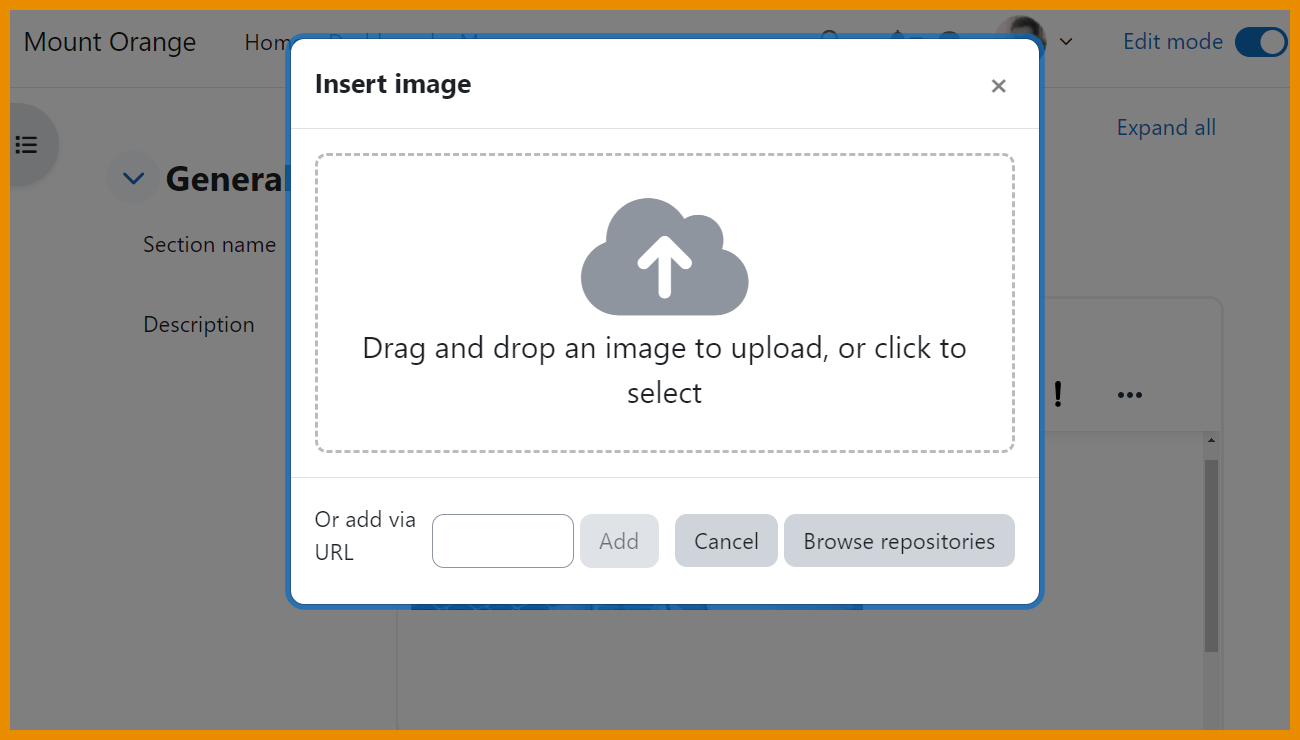
TinyMCE Improved image handling
Image handling is more streamlined with TinyMCE, giving a better user experience.
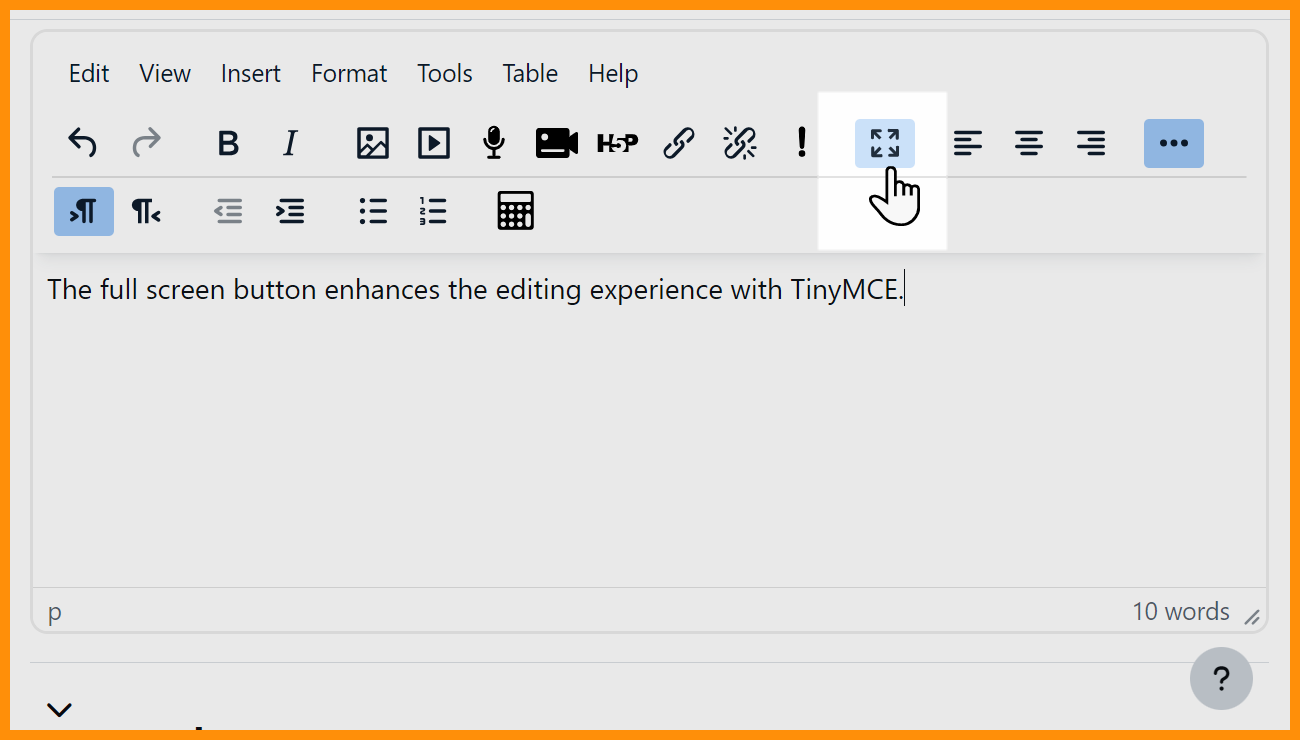
TinyMCE Full screen
Improvements to TinyMCE editor include a Full screen button.
4. Quiz and Question bank
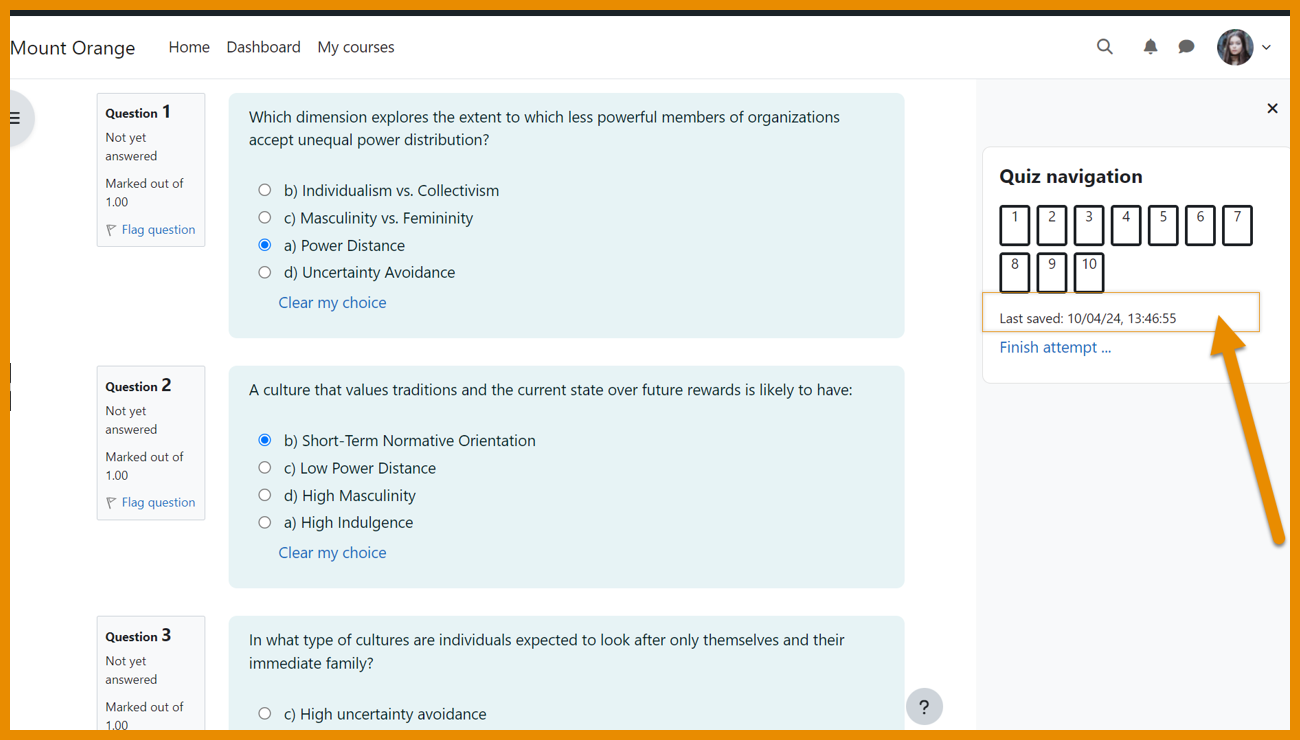
Display 'last saved'
Students can see from Quiz navigation when their responses were last saved.
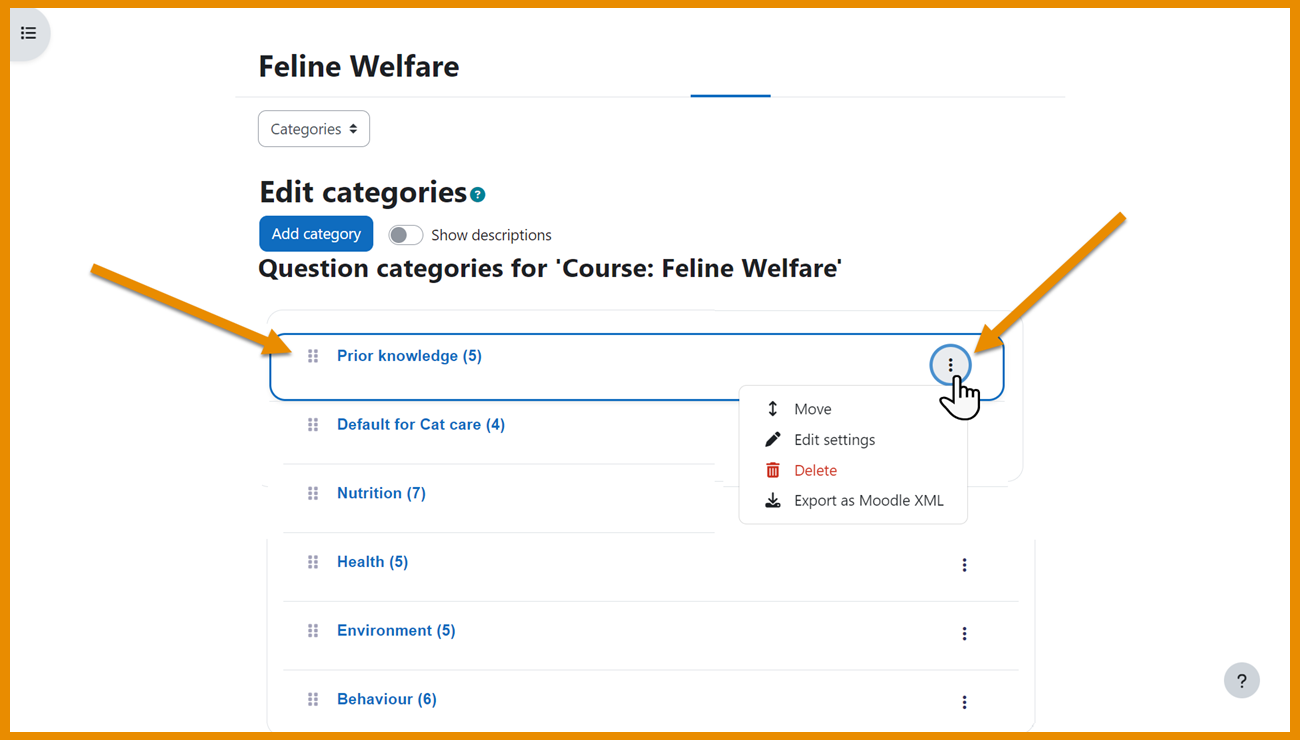
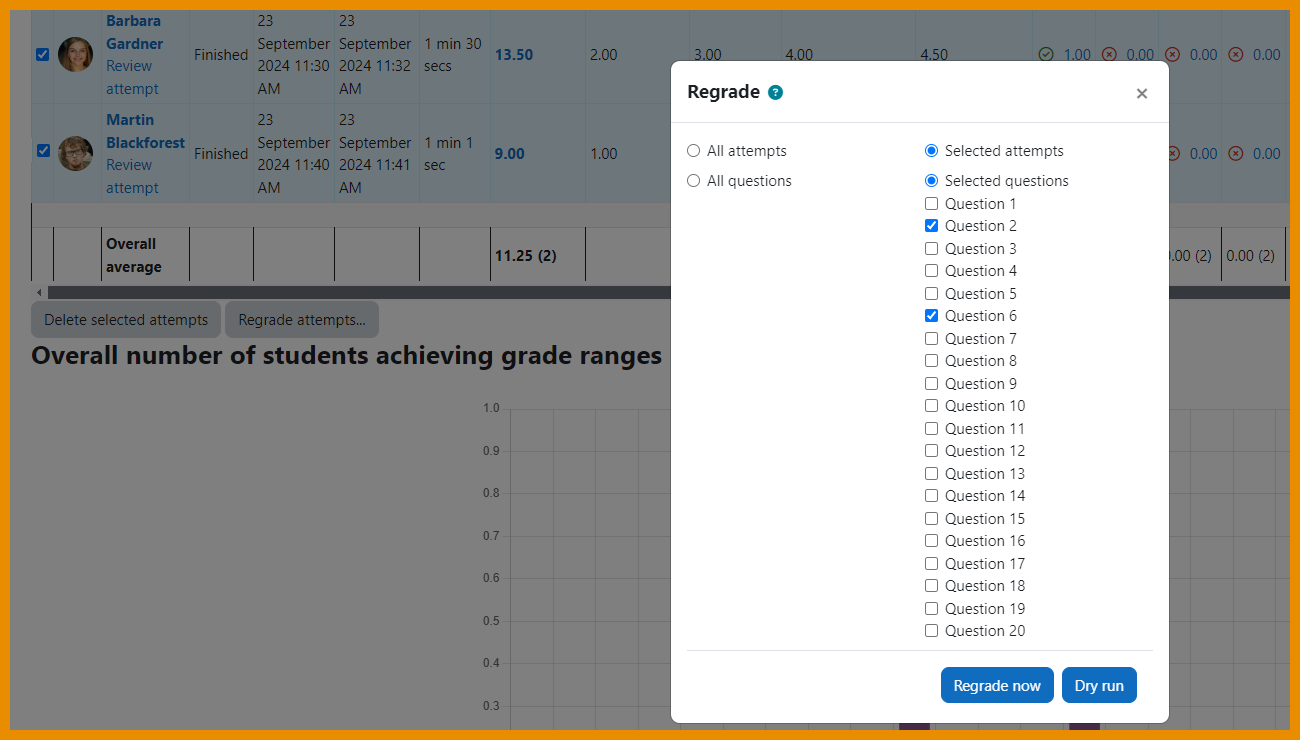
Regrade selected questions
Selected questions in a quiz can be regraded.
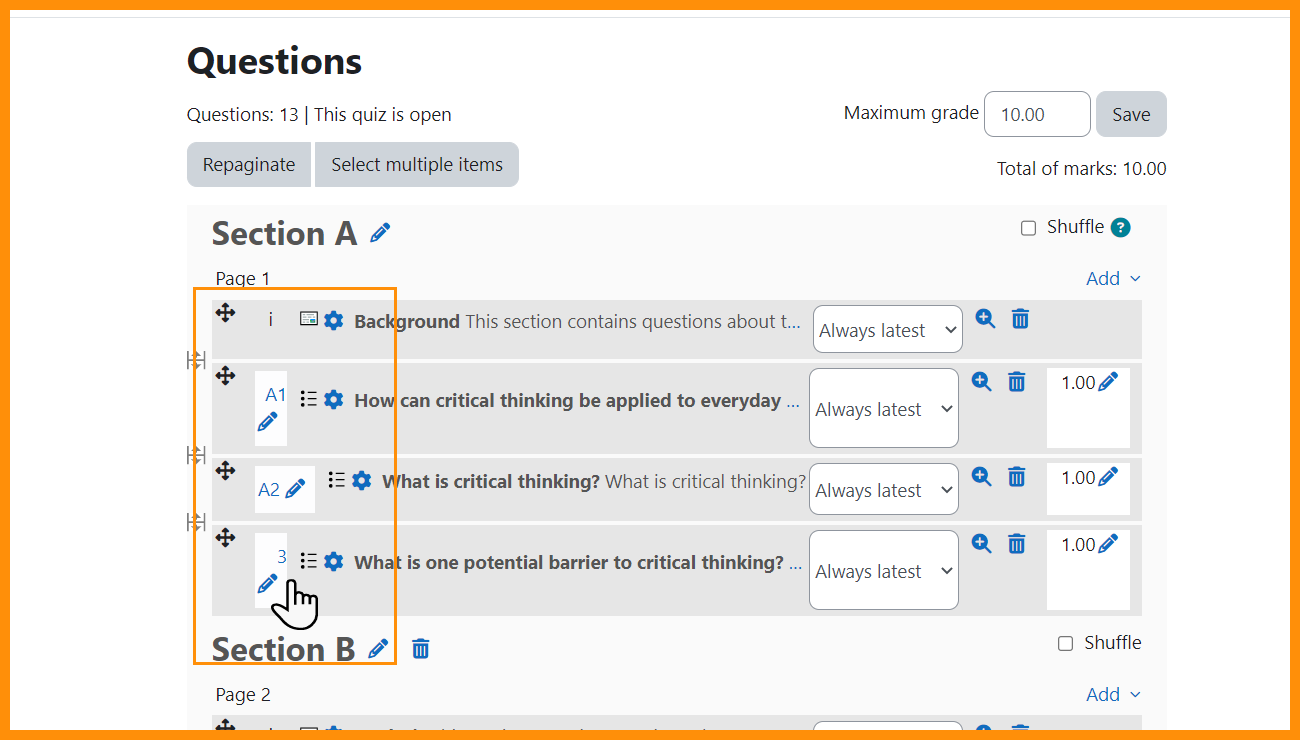
Question numbers
Teachers can customise question numbers.
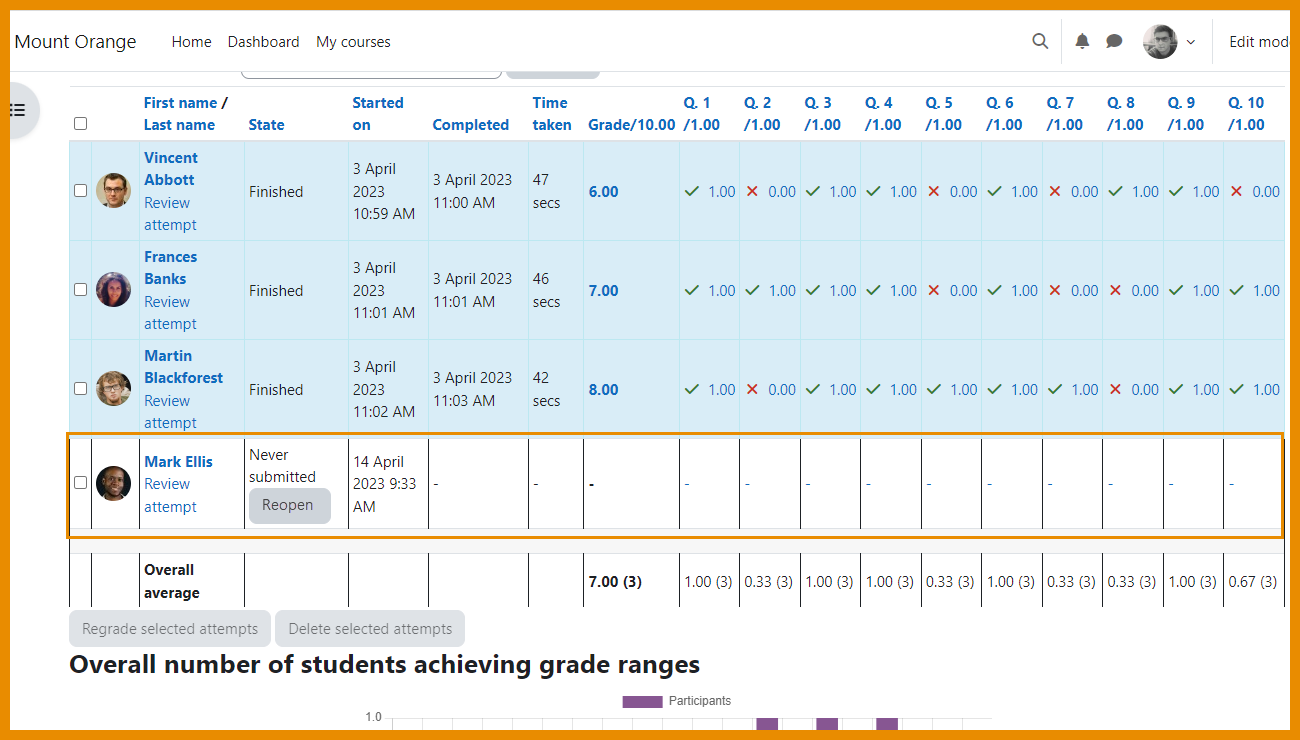
Bulk actions
Teachers can reopen attempts never submitted.
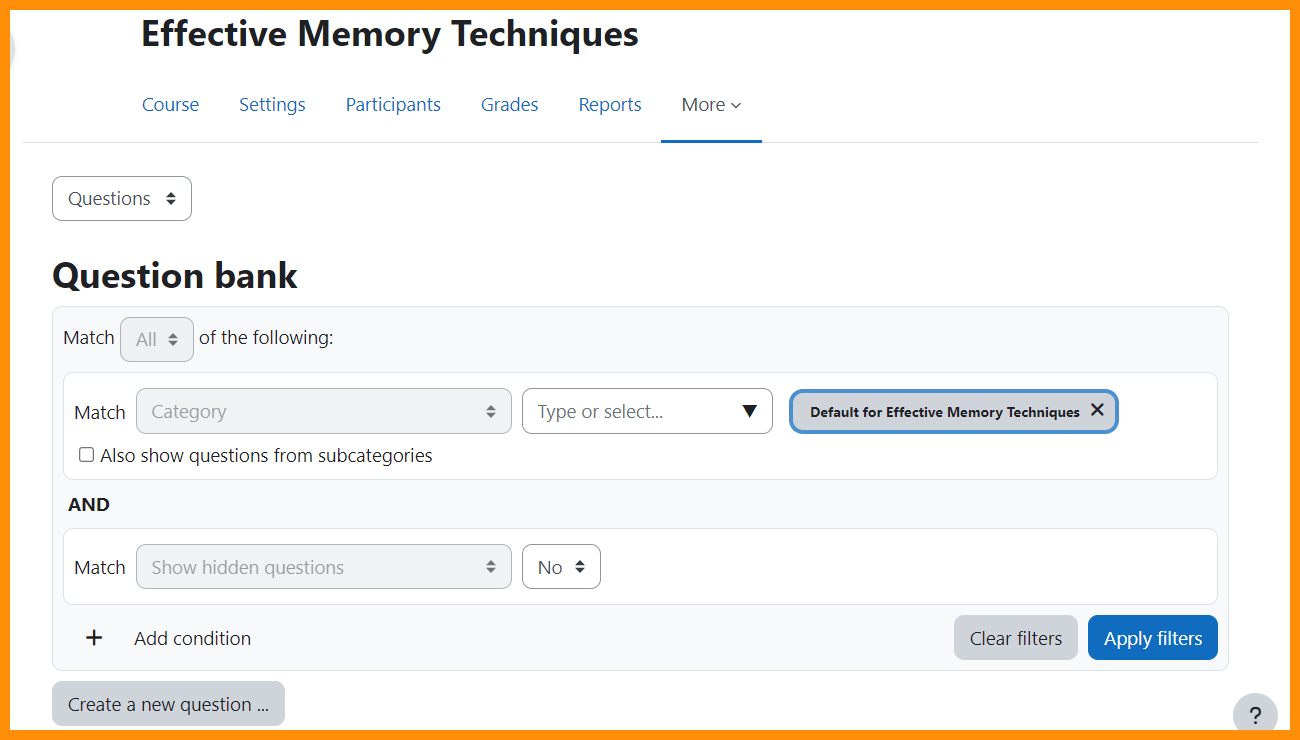
Better search and filter
The Question bank now has improved searching and filtering similar to other areas of Moodle.
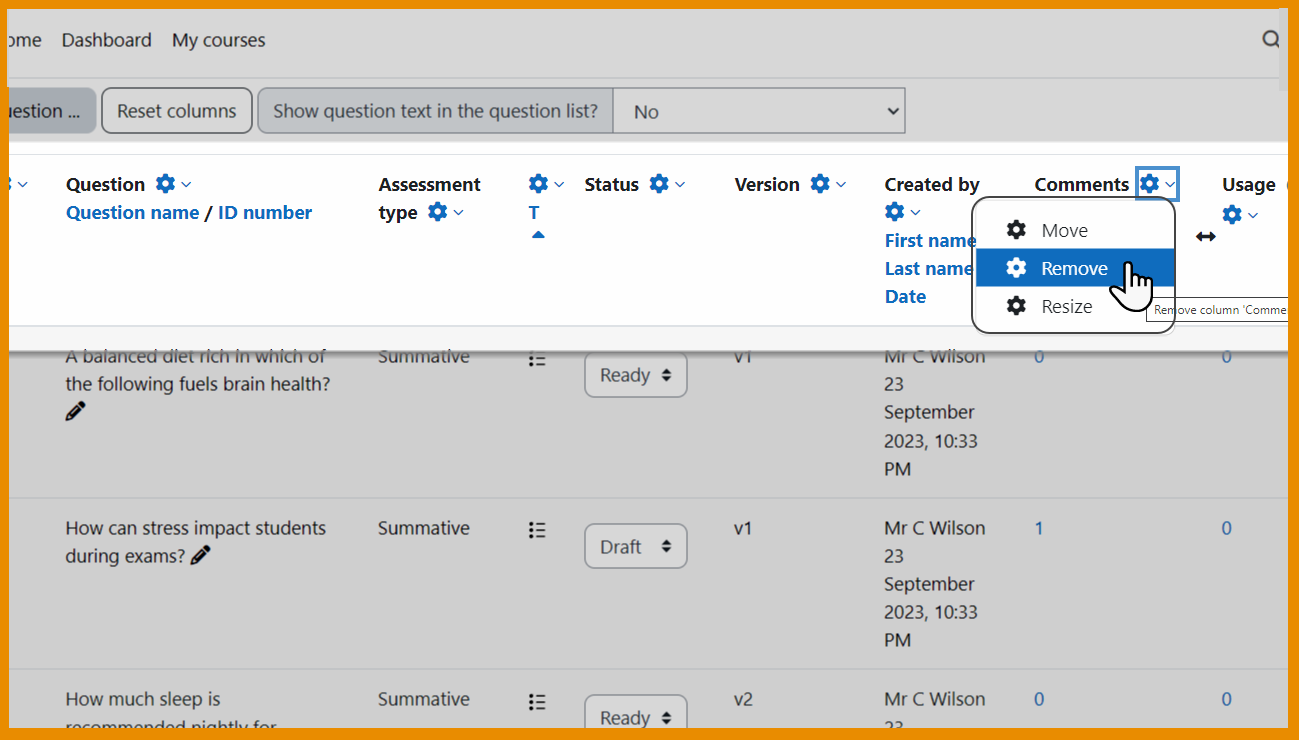
Customise view of Question bank
Teachers can hide, remove or resize columns in the Question bank.
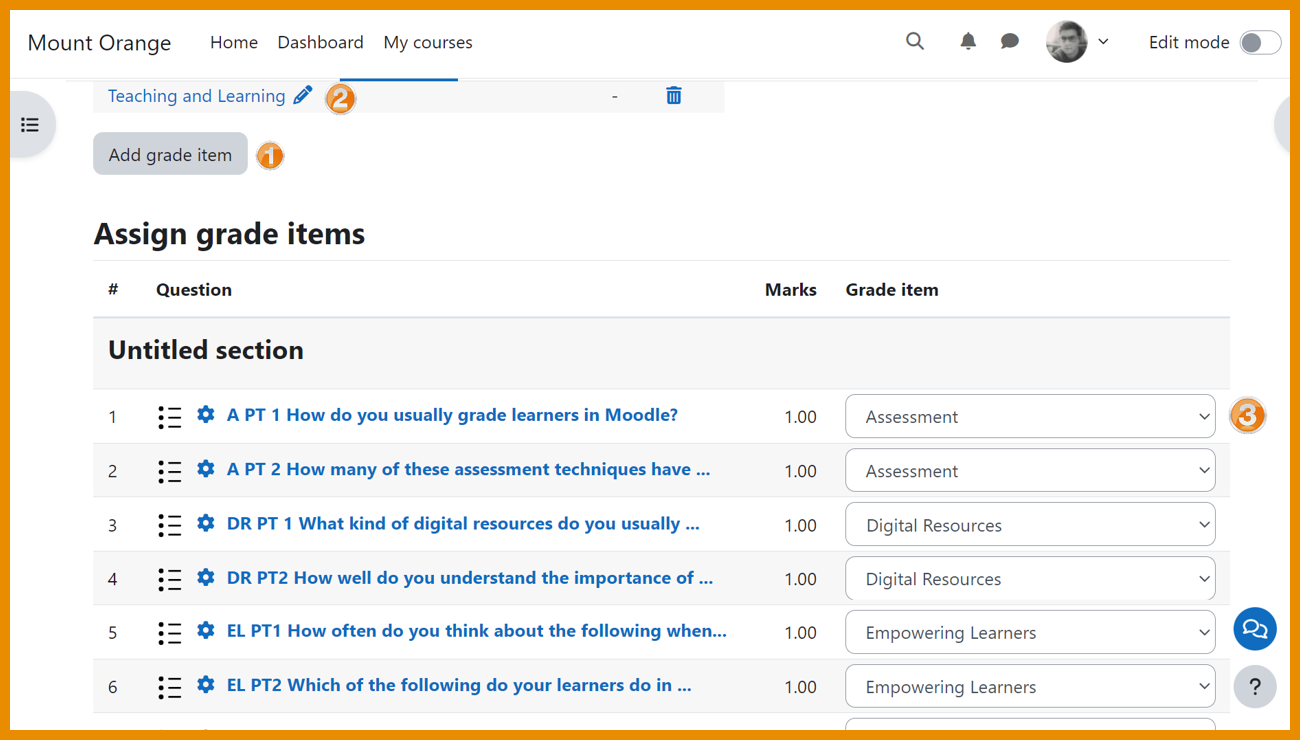
5. Gradebook enhancements
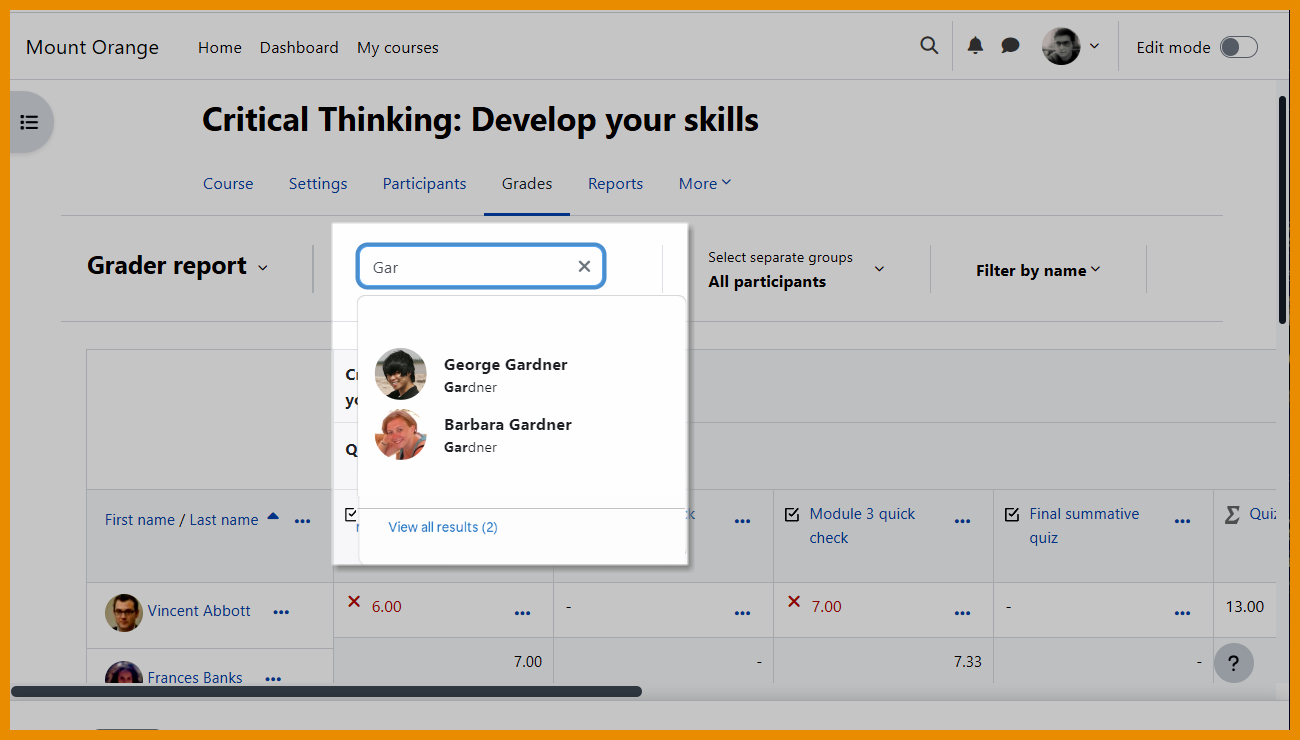
Grader report search
Easily search and filter the Grader report.
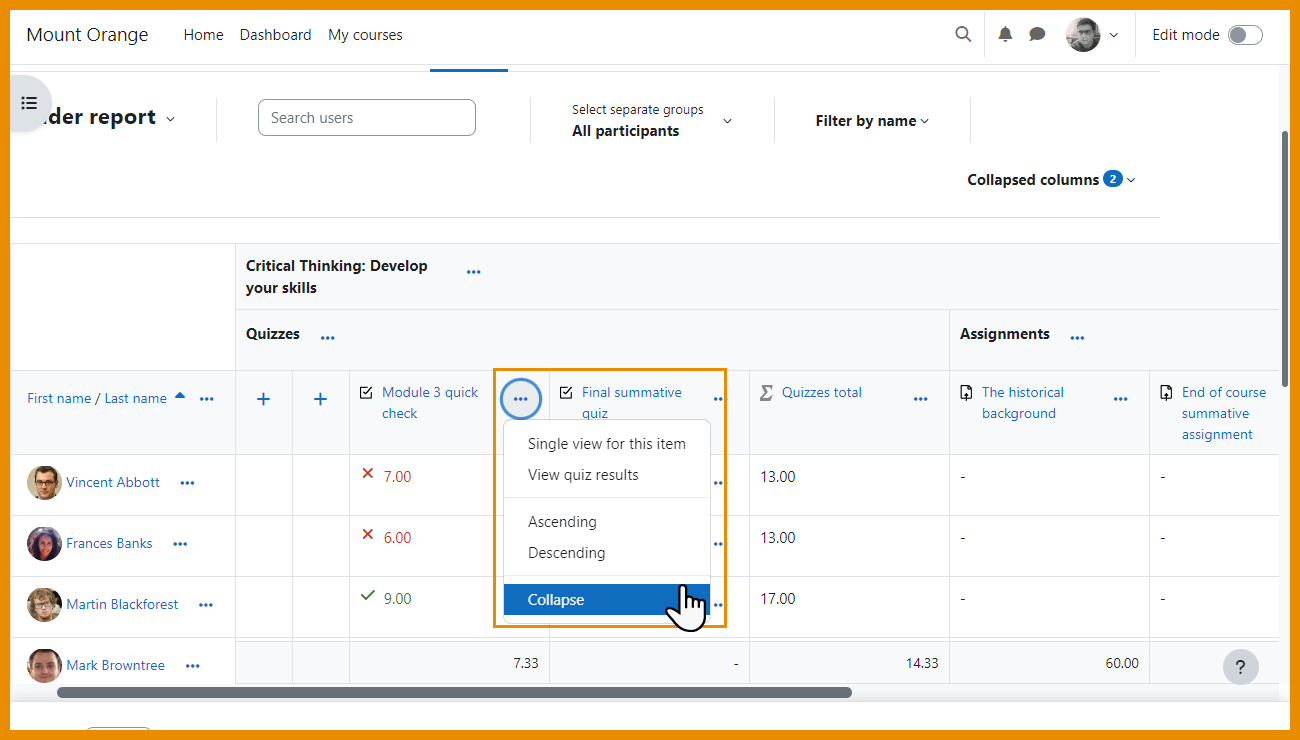
Collapse columns
Collapse columns the Grader report.
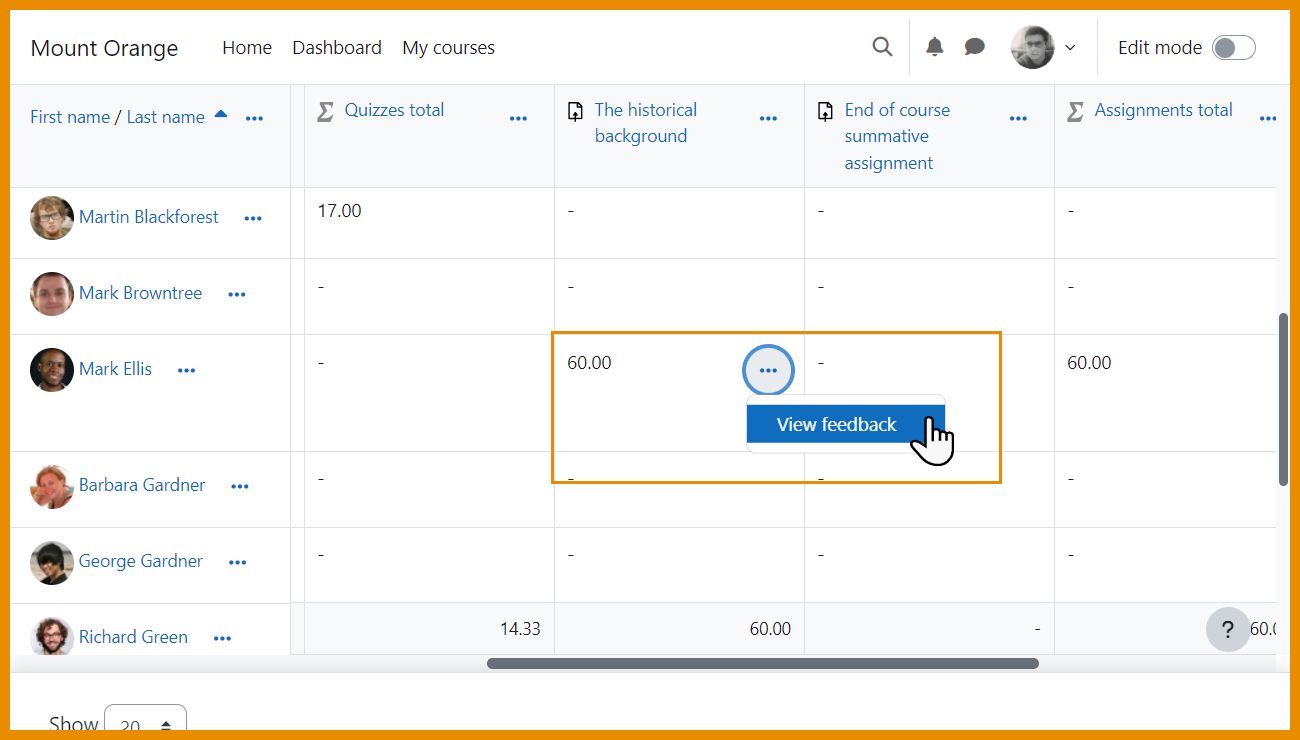
View feedback
View feedback directly in the Grader report.
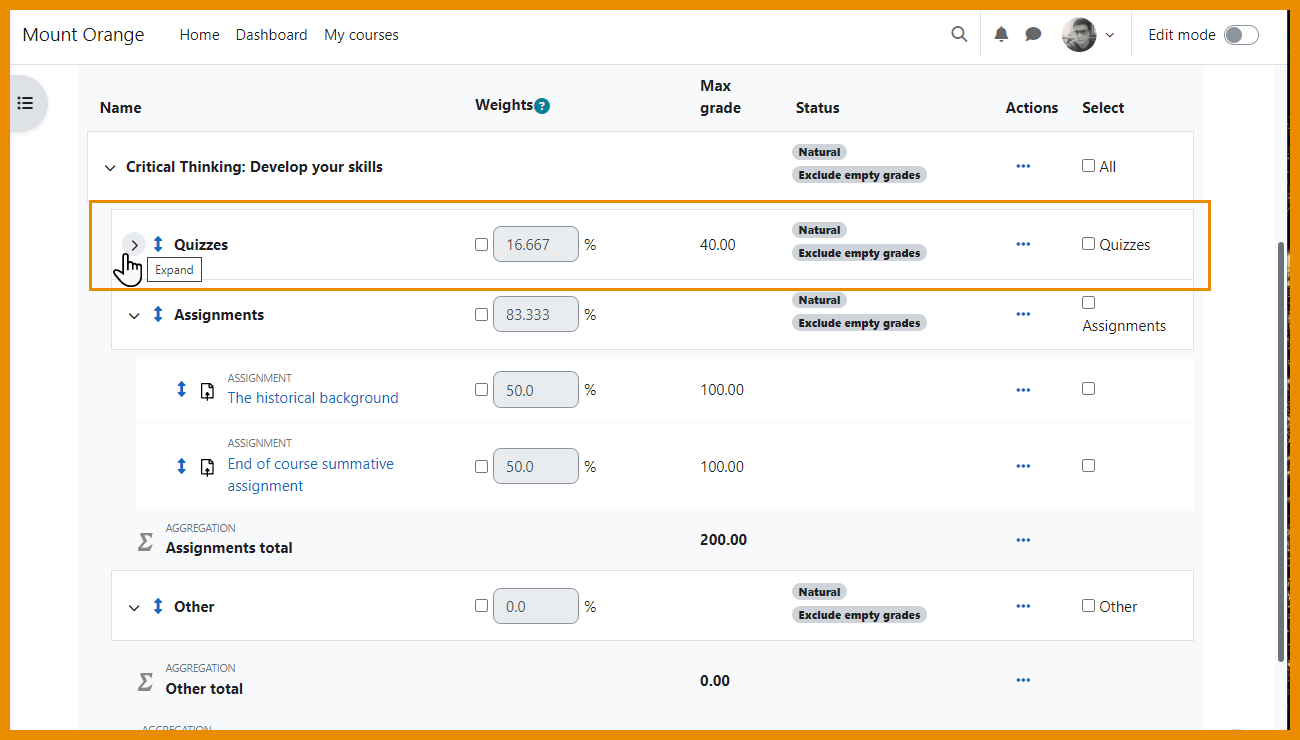
Collapsible categories
Collapse categories in the Gradebook setup for easier management.
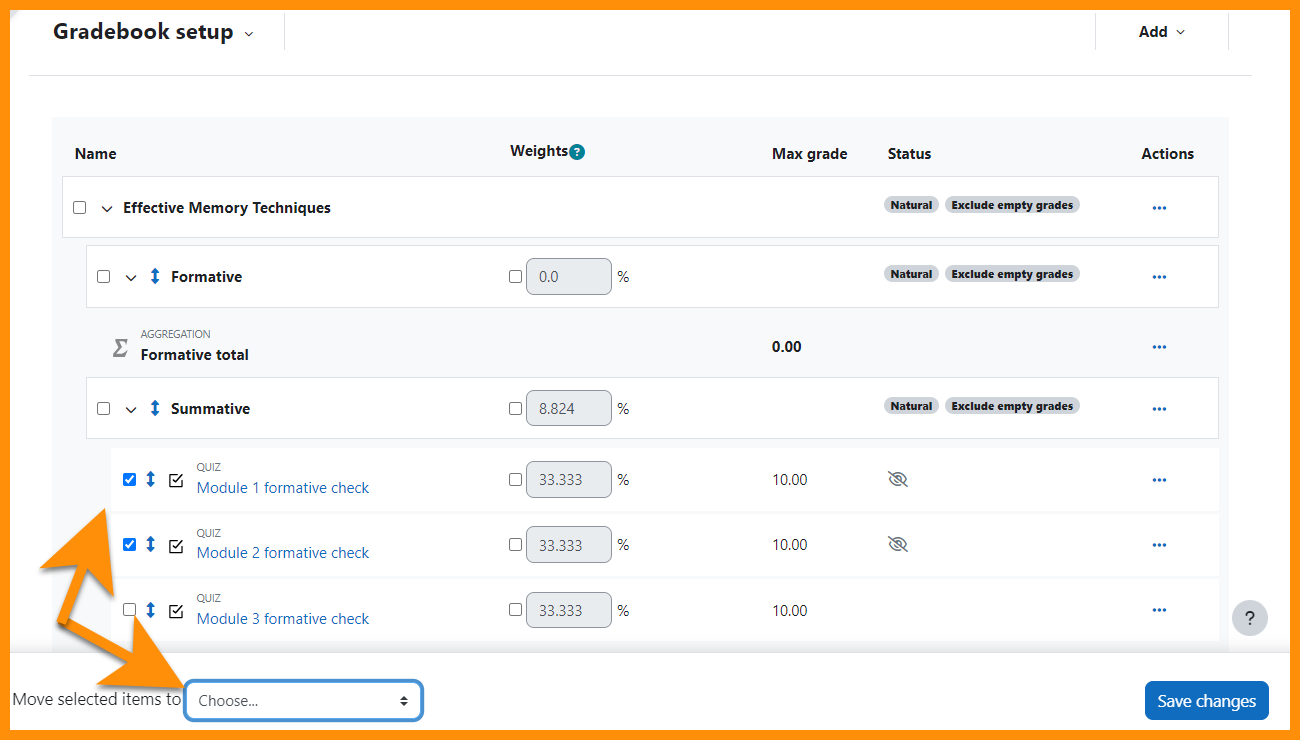
Sticky footers
Sticky footers give quick access to common action buttons and navigation links.
6. Assignment
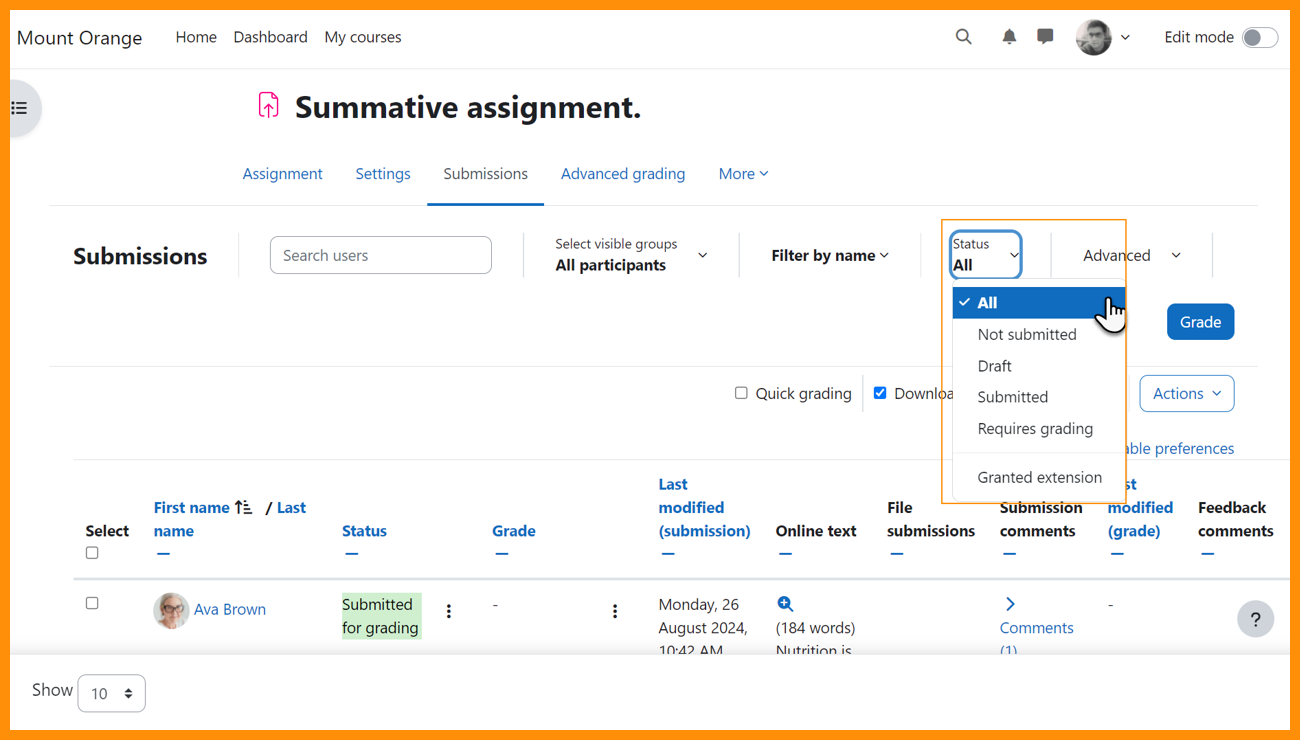
Key actions at the top of the screen
Along with better filtering, key actions are now available without the need to scroll down.
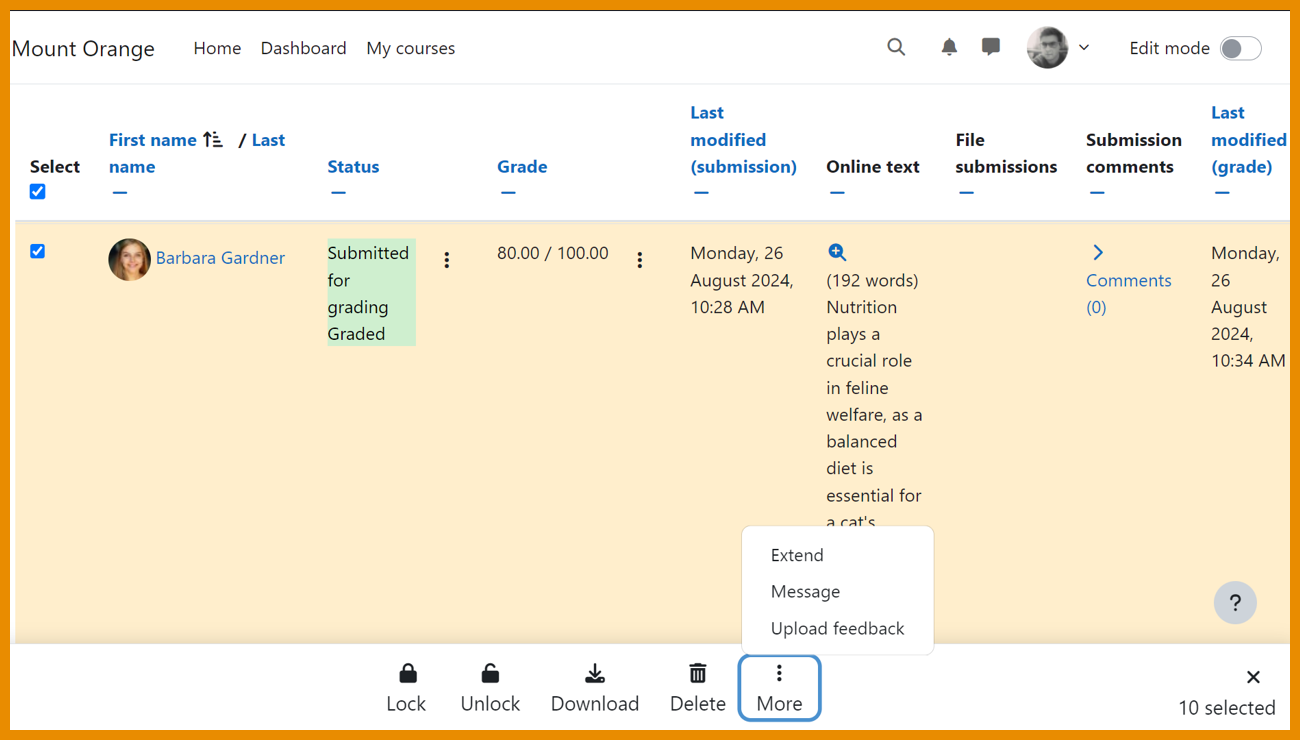
Easy access to bulk actions
A sticky footer provides easy access to bulk actions in the grading screen.
7. Subsections
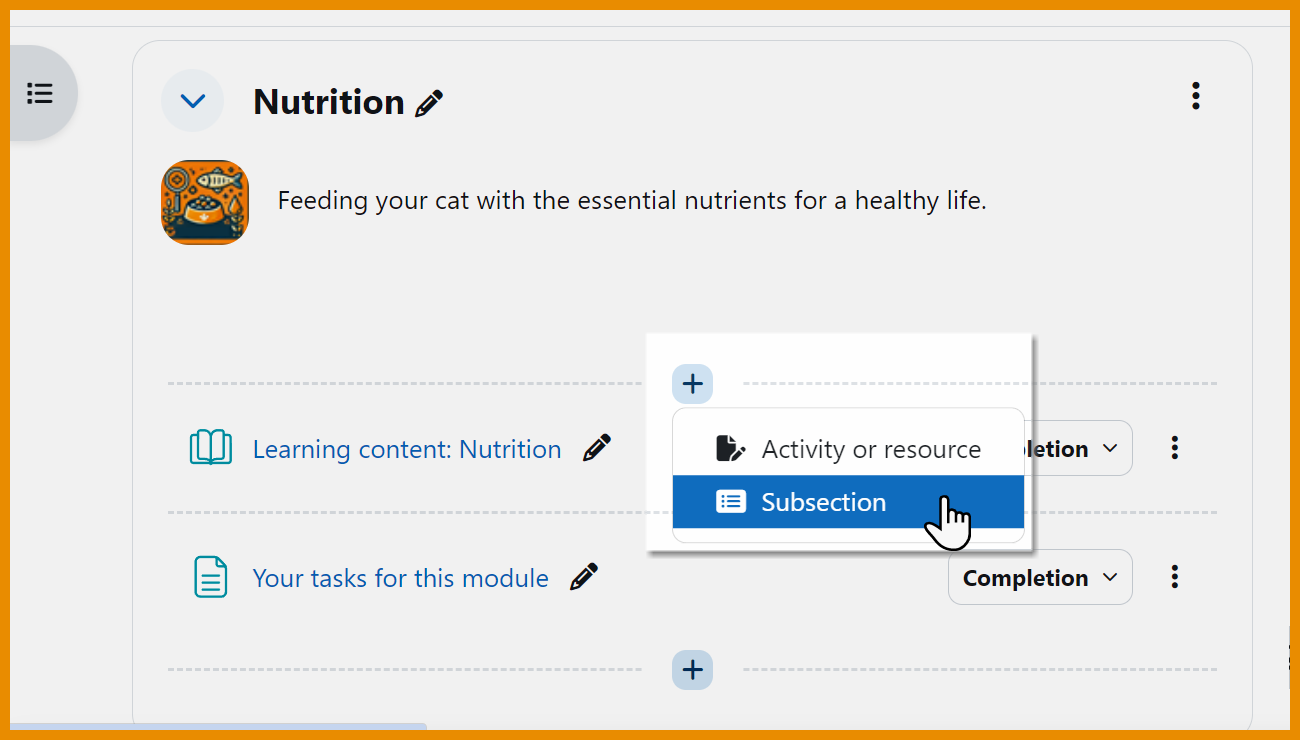
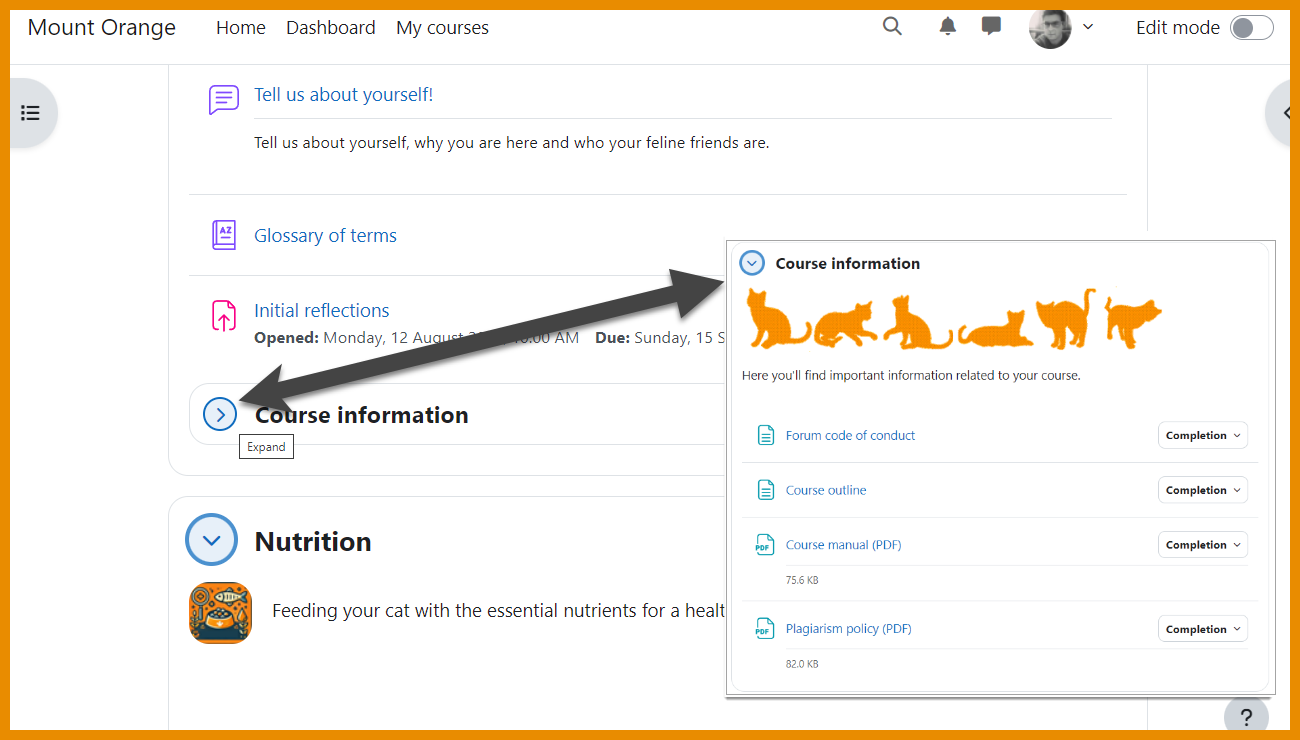
Add a section within a section
A new setting with edit mode enabled allows teachers to create subsections.
8. LTI External tools
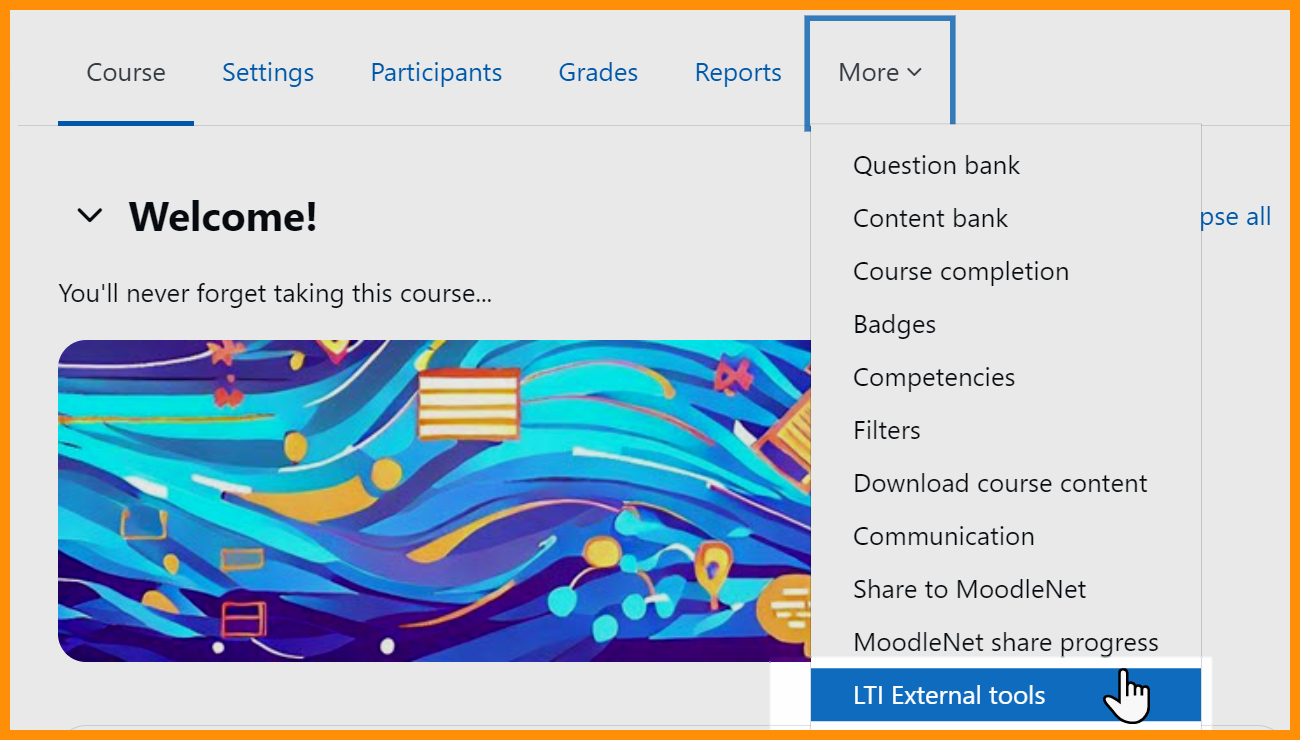
Add tools more easily in courses
Significant refactoring to LTI External tools simplify their use for course teachers.
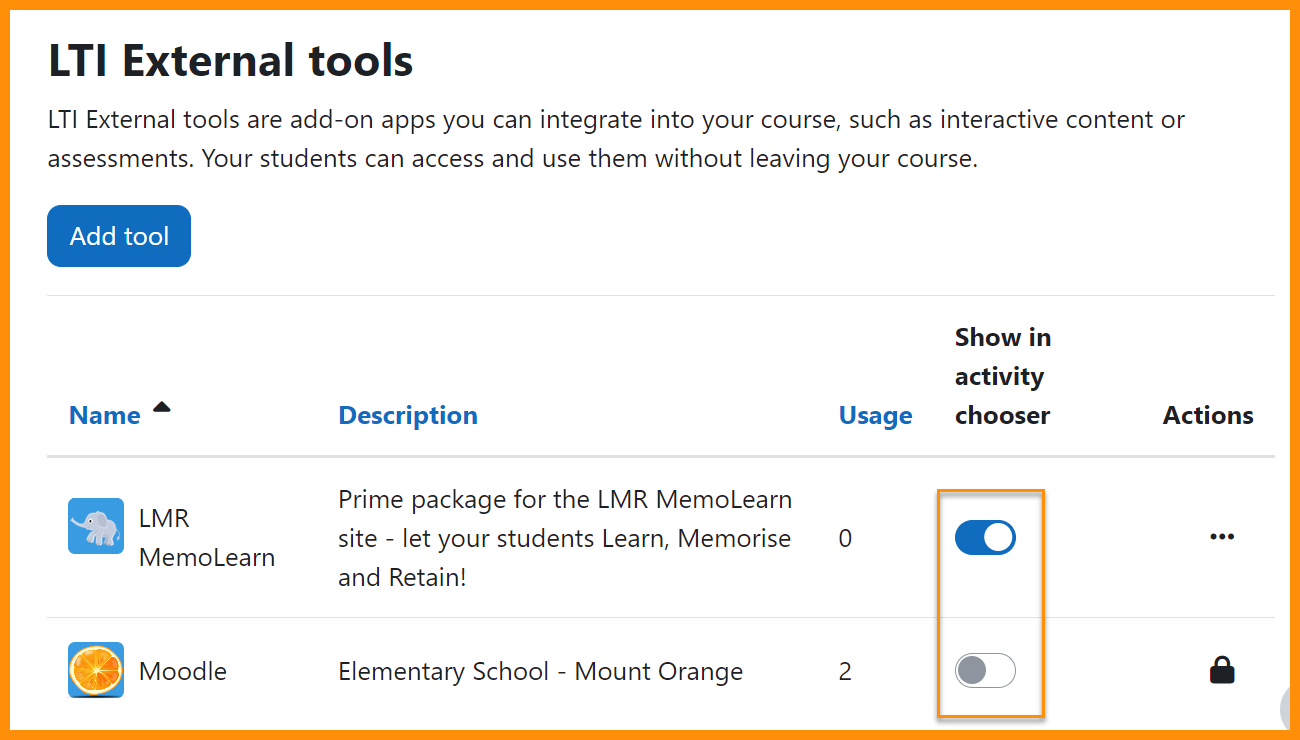
Control LTI display in Activity chooser
Teachers can specify which LTI tools will display for selection in the Activity chooser.
9. More...
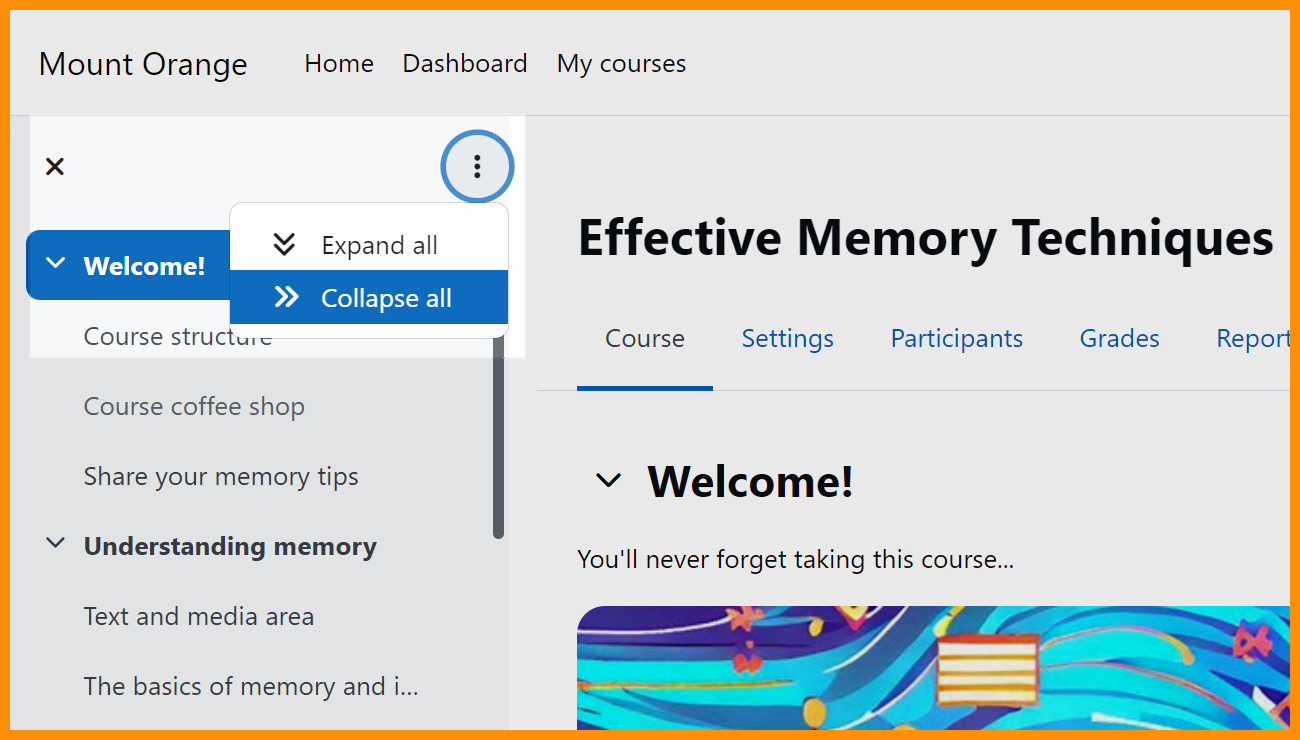
Course index collapse/expand all
Expand all/collapse all options for the course index on the course page.
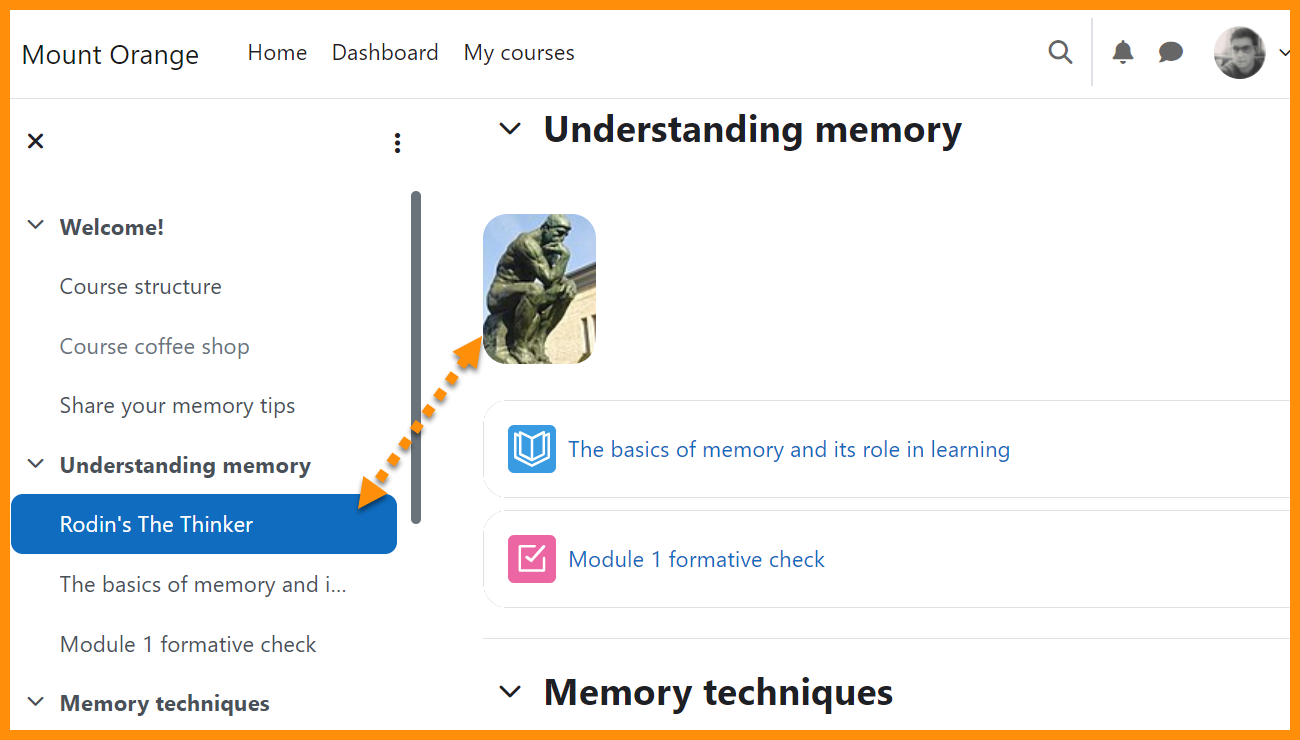
Text and Media area name
Text and media areas can now have names which display in the Course index.
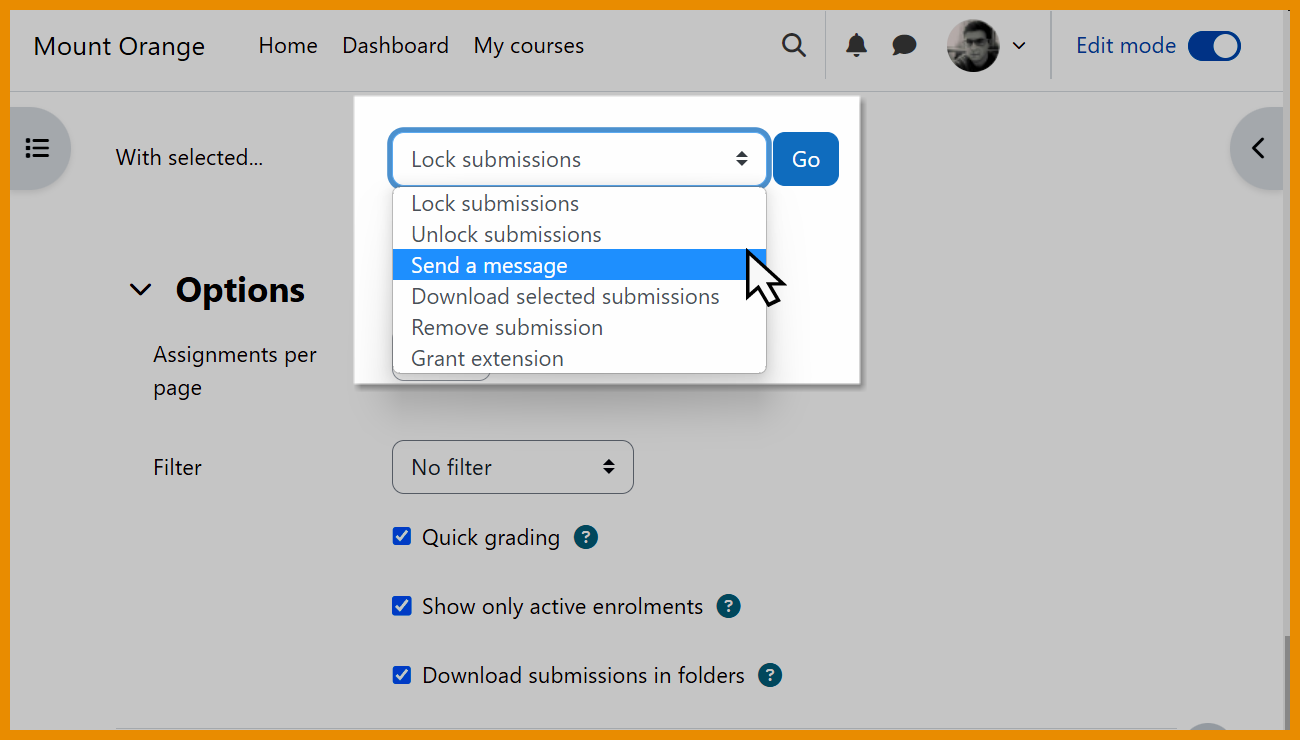
Assignment messaging
Message students directly from the Assignment grading screen.
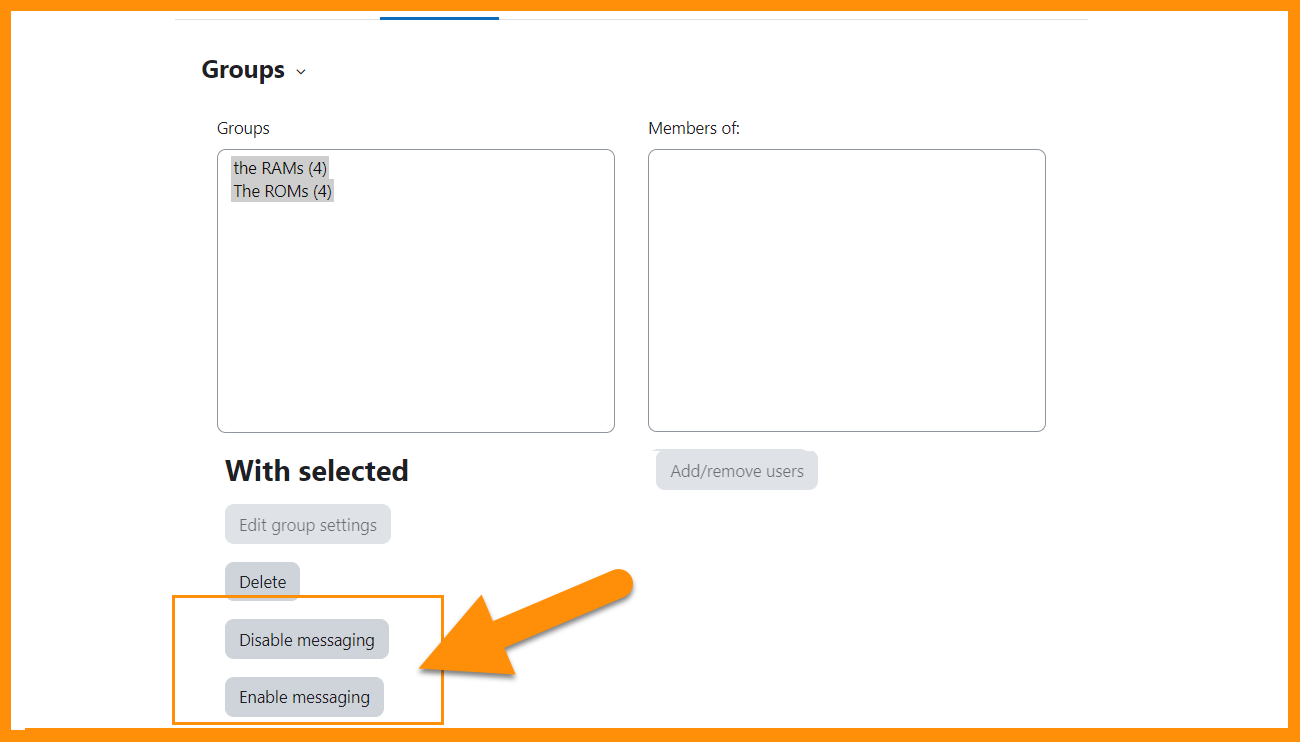
Group messaging improvement
You can now bulk enable or disable group messaging.
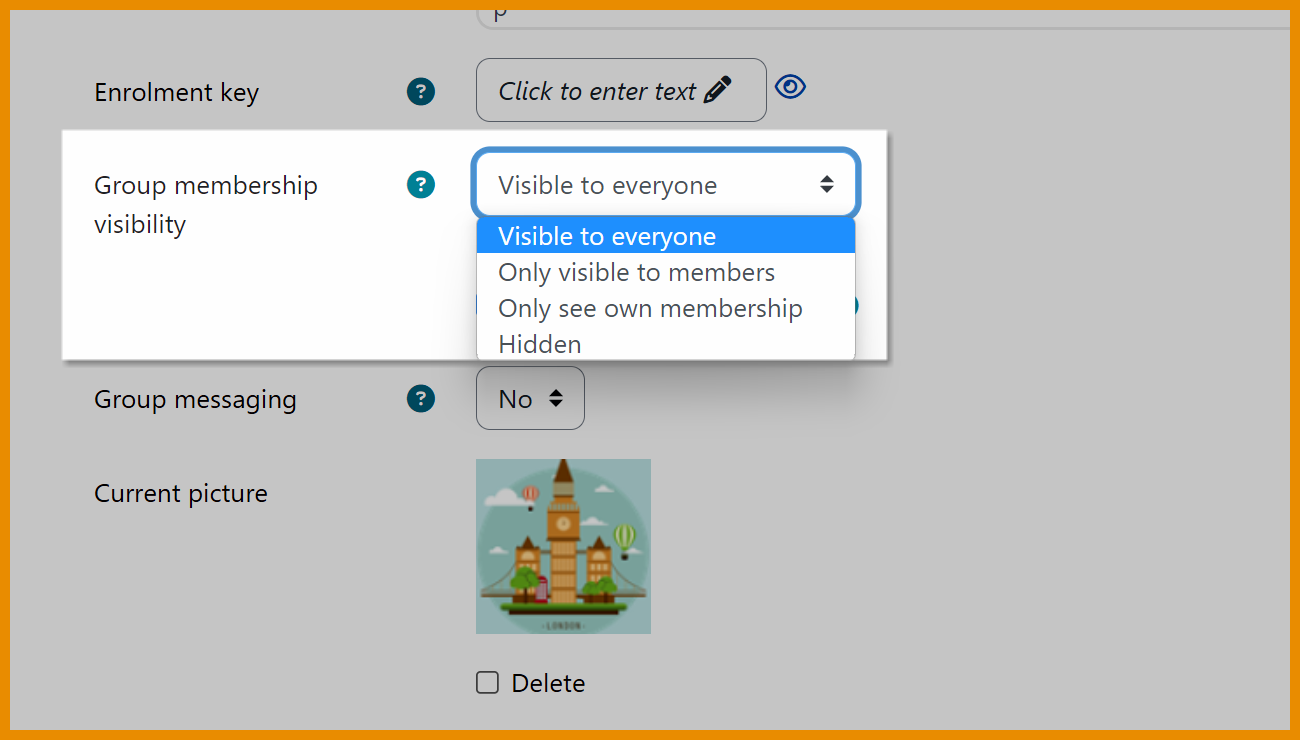
Group membership visibility
Specify who can see which groups in a course.
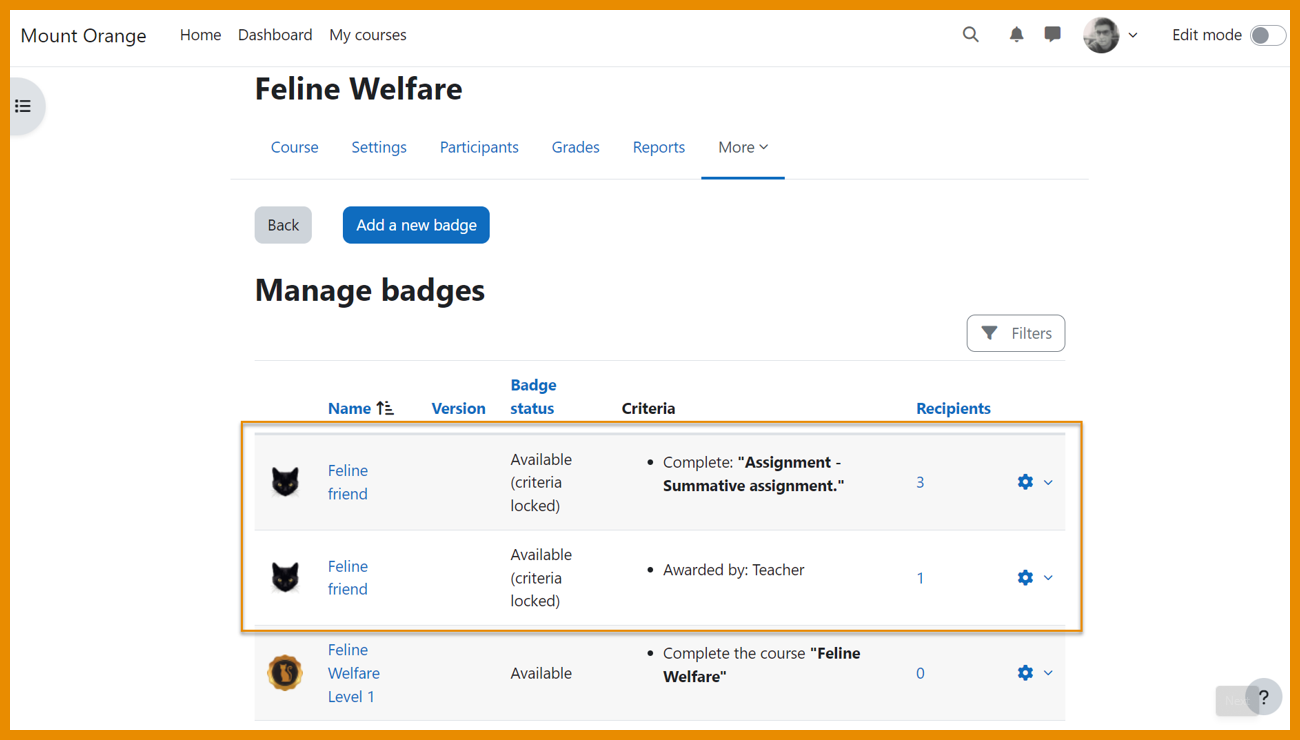
Duplicate badges
Use badges with the same name in a single course.
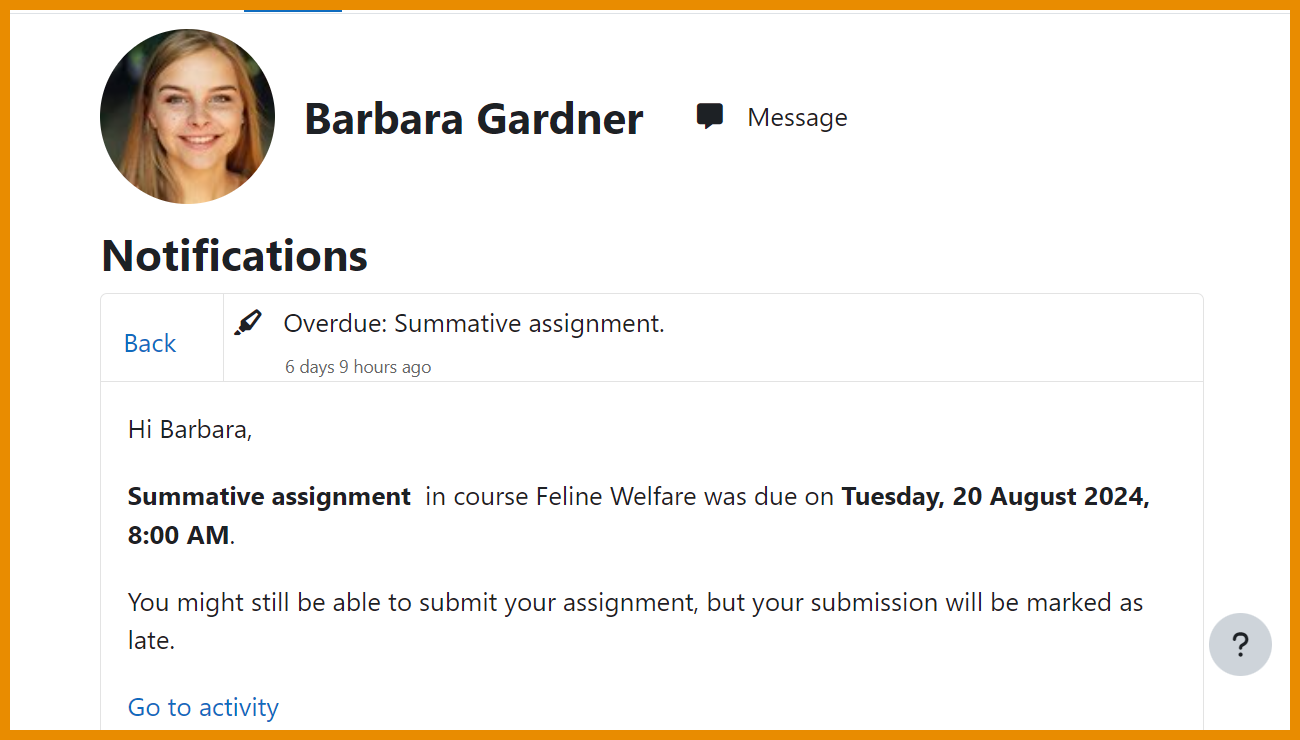
New notifications
Your learners will be notified of upcoming and overdue assignments, along with quizzes about to open.
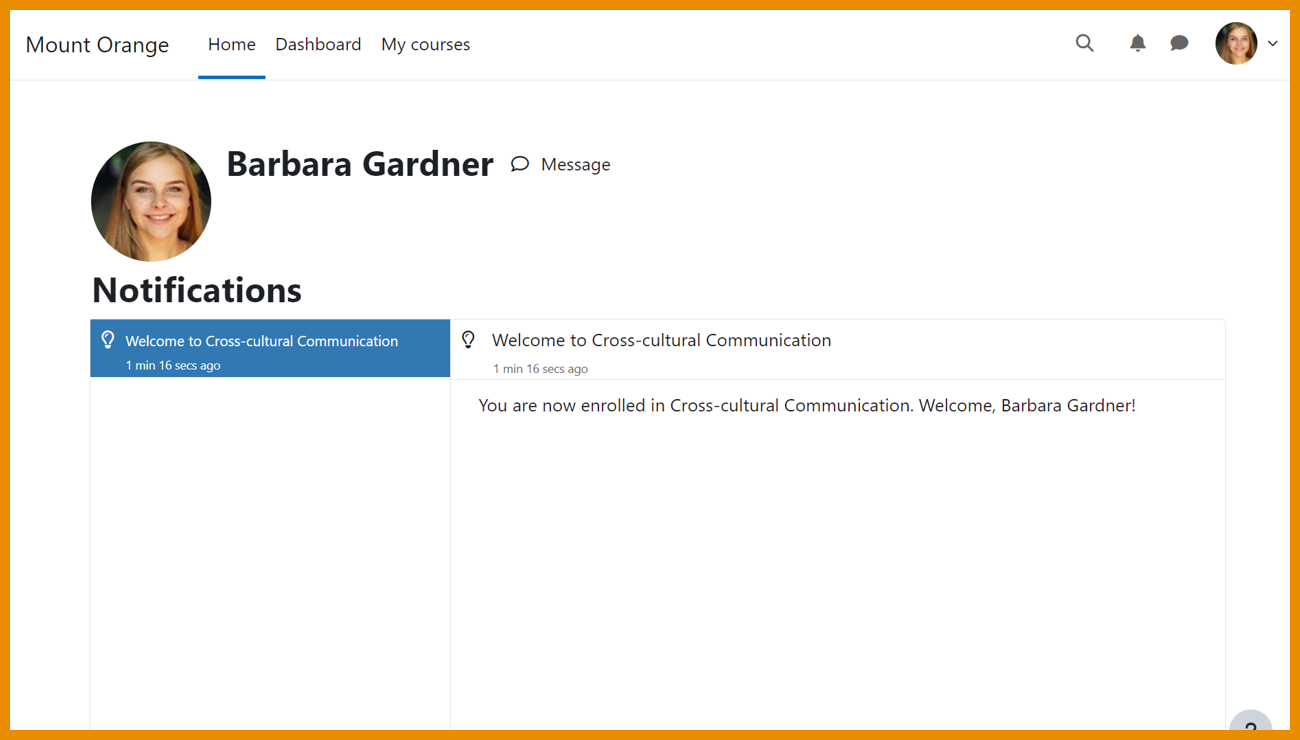
Notifications for Manual enrolments
Notifications now include welcome messages for manual enrolments and warnings of unenrolment due to inactivity.